> ## Documentation Index
> Fetch the complete documentation index at: https://docs.getayna.com/llms.txt
> Use this file to discover all available pages before exploring further.
# Post-Production & Download
> Now that Ayna has generated your photoshoot, you can refine your images, apply marketplace-specific cropping, reorder and organize your files, and finally download your outputs for use across platforms.
## Image Refinement
For a detailed walkthrough of image refinement, see: [Refine Image](/how-tos/refine-image)
## Marketplace Variations
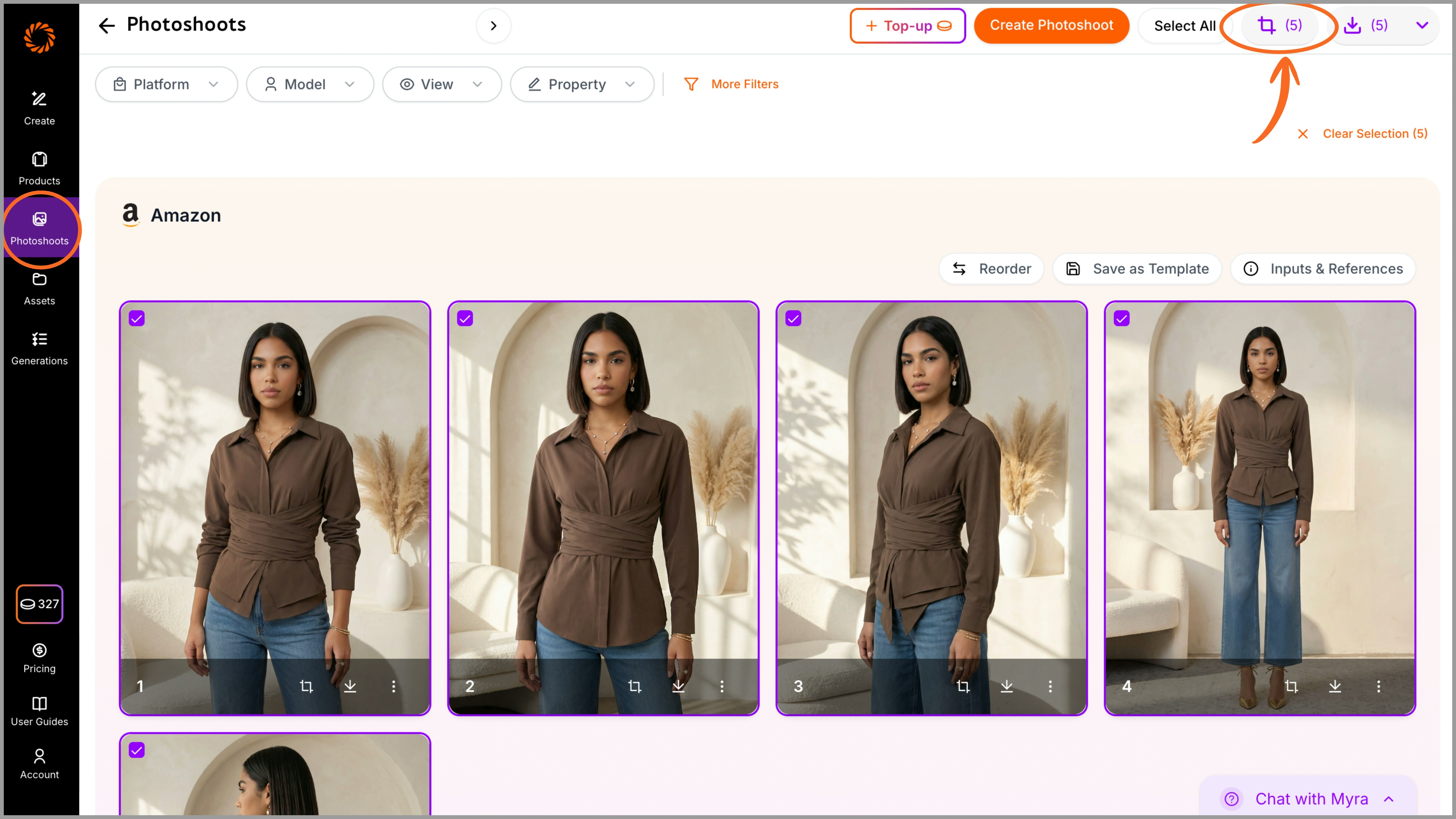
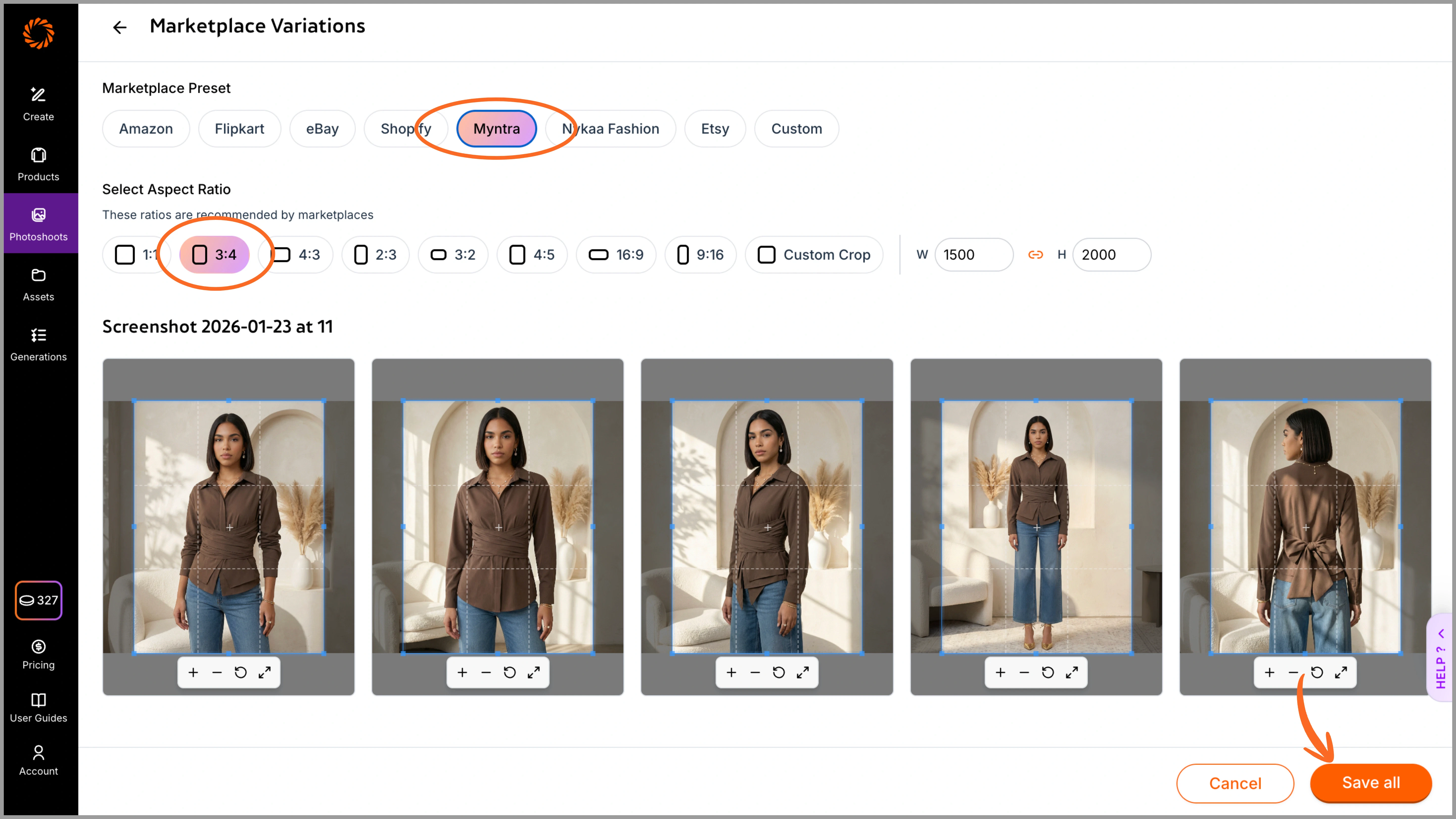
Once your photoshoot is generated in a custom size, you can instantly create marketplace-specific variations such as Myntra, Nykaa Fashion, Flipkart, and more. Select the desired marketplace to crop your images in the exact ratio supported by them and save changes. All variations can be viewed under the 'photoshoot' section.
This eliminates the need for manual resizing or cropping. All marketplace versions are automatically saved under the same photoshoot, and you can select and download them together in a single folder.
To use this feature seamlessly, we recommend creating your initial images in the Amazon (1:1) ratio so that images can easily be cropped without missing out on any details.
 ## Reordering of Images
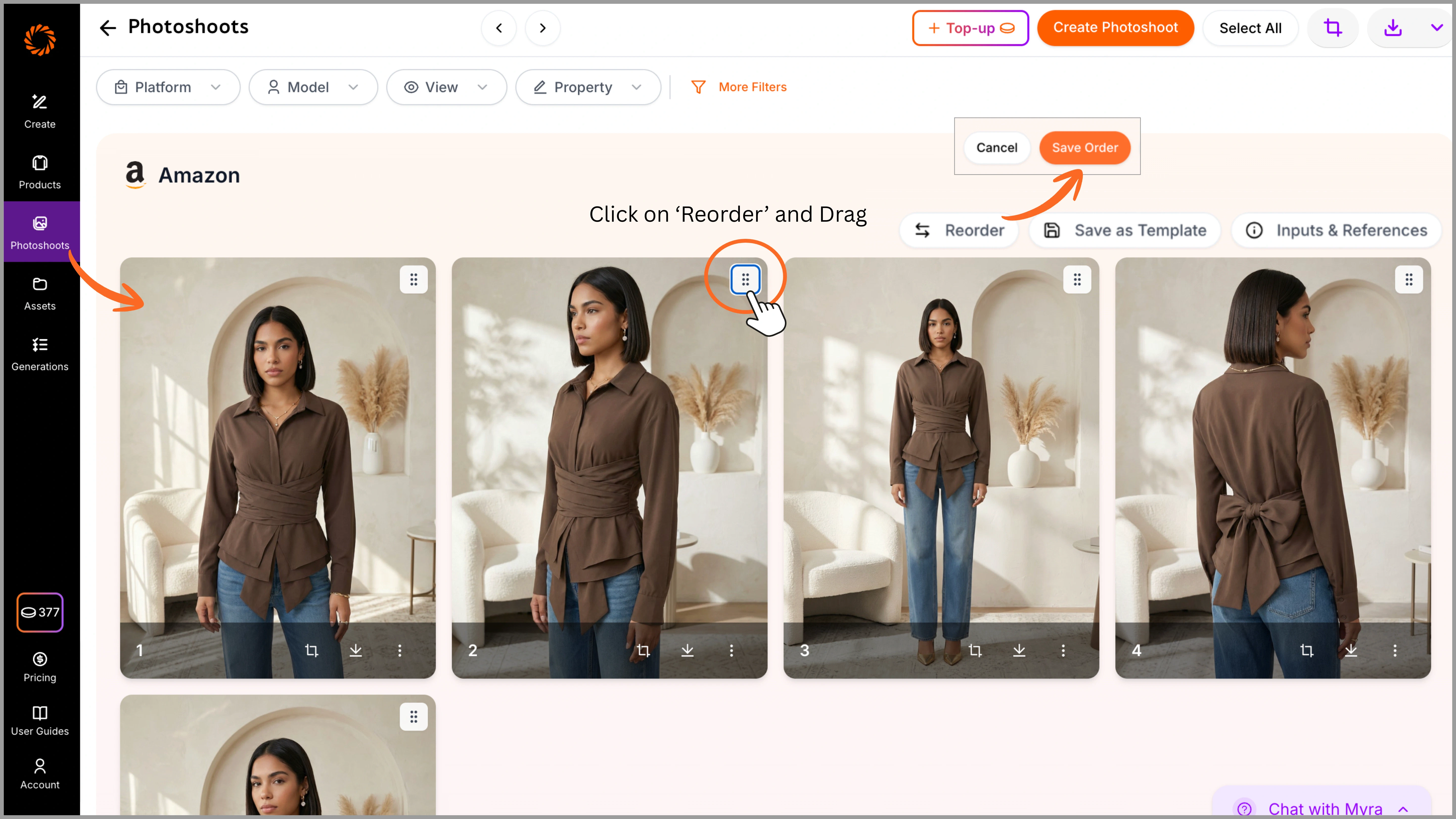
After your images are generated, you can rearrange them directly within the Photoshoot section. Simply drag and reposition the images to set your preferred sequence. For example, front view first, followed by side views, detail shots, and back view.
This ensures your images are saved and downloaded in the correct order, eliminating the need for manual rearrangement later.
## Reordering of Images
After your images are generated, you can rearrange them directly within the Photoshoot section. Simply drag and reposition the images to set your preferred sequence. For example, front view first, followed by side views, detail shots, and back view.
This ensures your images are saved and downloaded in the correct order, eliminating the need for manual rearrangement later.
 ## Naming and Foldering
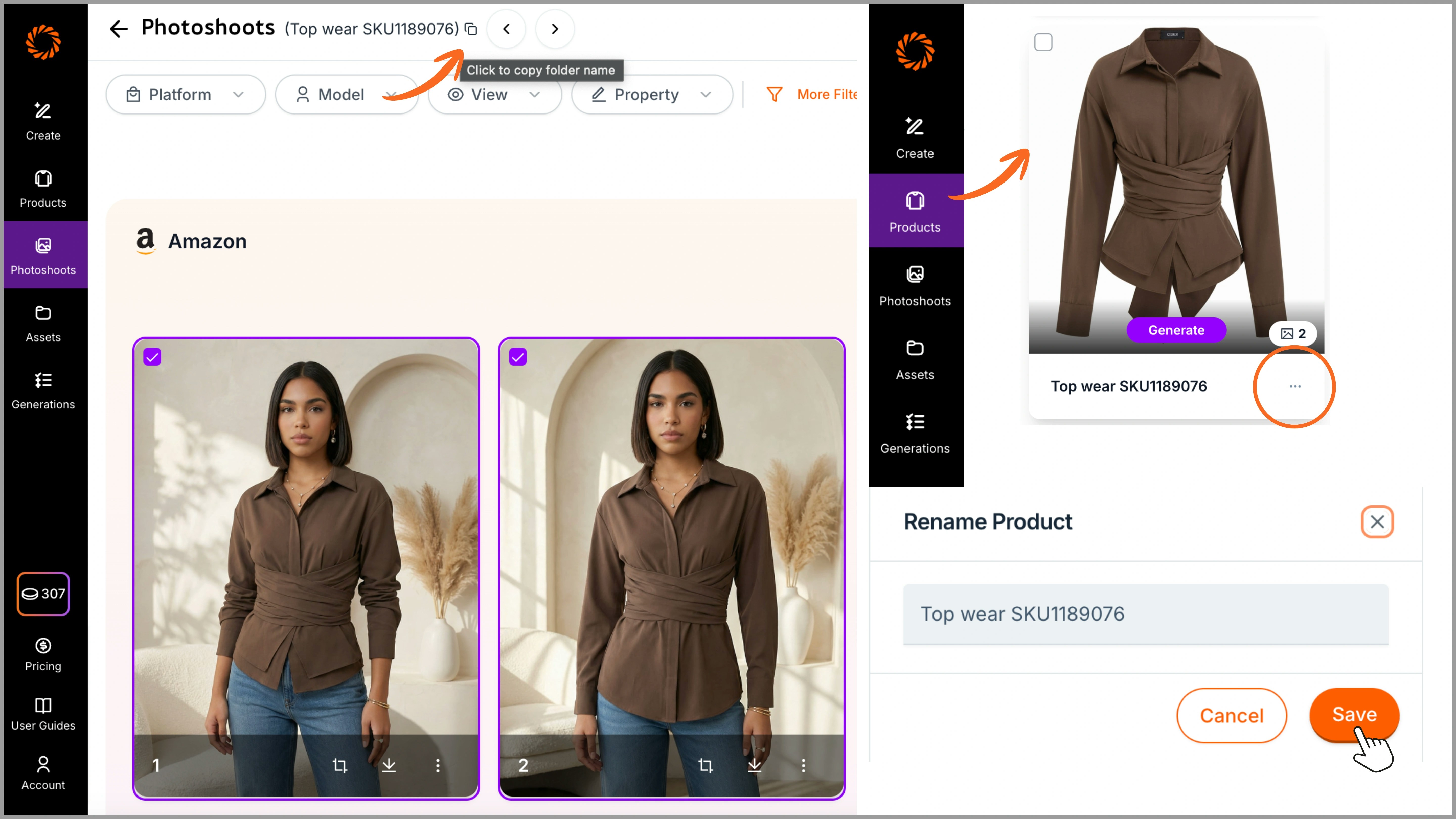
You can name your folders or images before uploading them to Ayna, or upload them directly and rename them later from the **'Product'** tab. The photoshoot name will reflect the same folder name, and when you download the images, they will be saved using that name for easy identification.
## Naming and Foldering
You can name your folders or images before uploading them to Ayna, or upload them directly and rename them later from the **'Product'** tab. The photoshoot name will reflect the same folder name, and when you download the images, they will be saved using that name for easy identification.
 ## Downloading
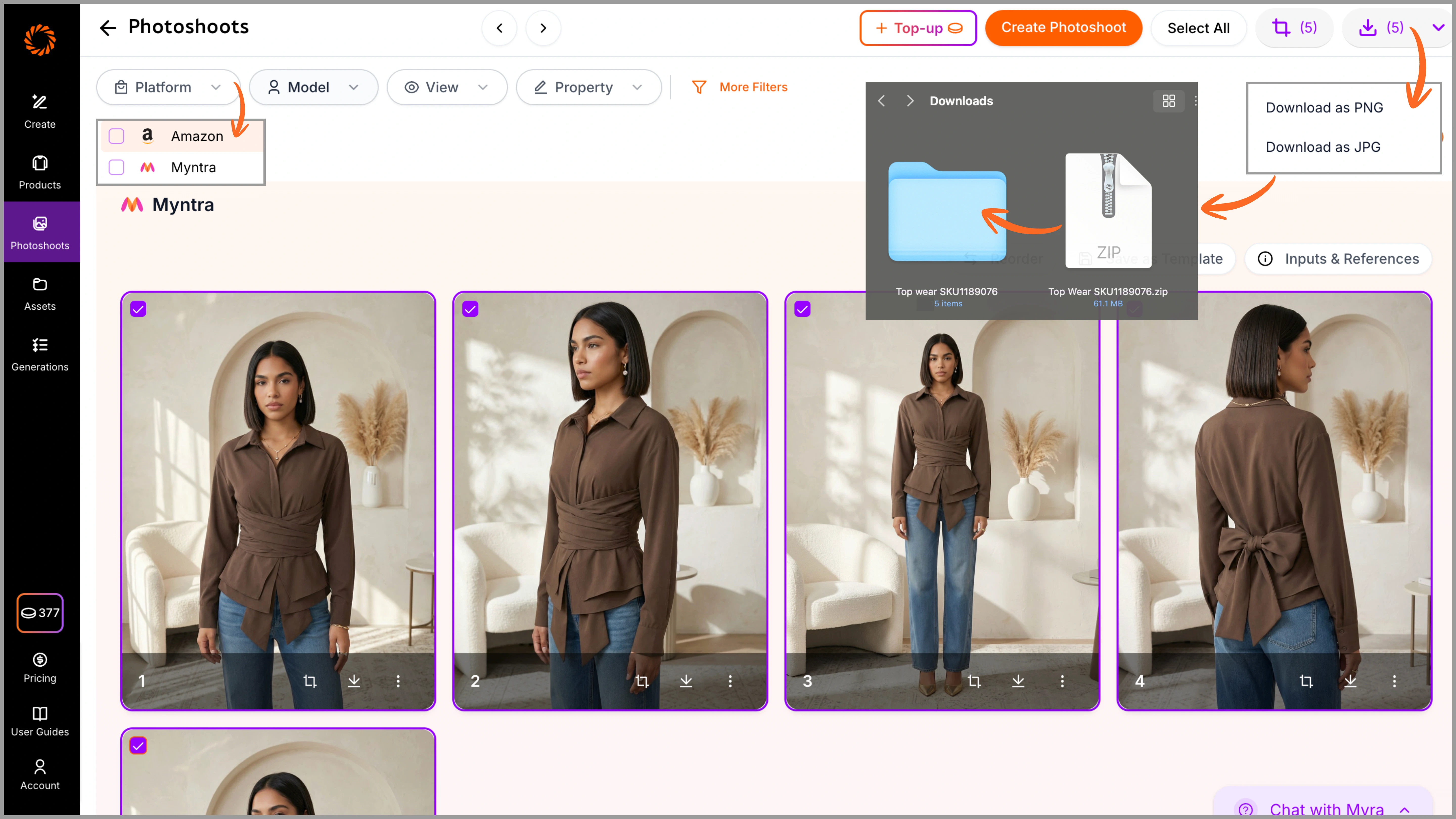
To download your images, select the desired marketplace platform from the **Platform** option. All generated marketplace variations (such as Amazon, Myntra, etc.) will be displayed.
Select your images, and download them in **PNG or JPG** format. The images will be saved in a folder with the same photoshoot name for easy organization.
## Downloading
To download your images, select the desired marketplace platform from the **Platform** option. All generated marketplace variations (such as Amazon, Myntra, etc.) will be displayed.
Select your images, and download them in **PNG or JPG** format. The images will be saved in a folder with the same photoshoot name for easy organization.
 ***
That's it! Follow these guidelines to get the best output possible. If you have any doubts, feel free to contact us at [support@getayna.com](mailto:support@getayna.com) or [book a demo](https://www.getayna.com/book-a-demo) with us.
***
That's it! Follow these guidelines to get the best output possible. If you have any doubts, feel free to contact us at [support@getayna.com](mailto:support@getayna.com) or [book a demo](https://www.getayna.com/book-a-demo) with us.