> ## Documentation Index
> Fetch the complete documentation index at: https://docs.getayna.com/llms.txt
> Use this file to discover all available pages before exploring further.
# Create a Custom Model
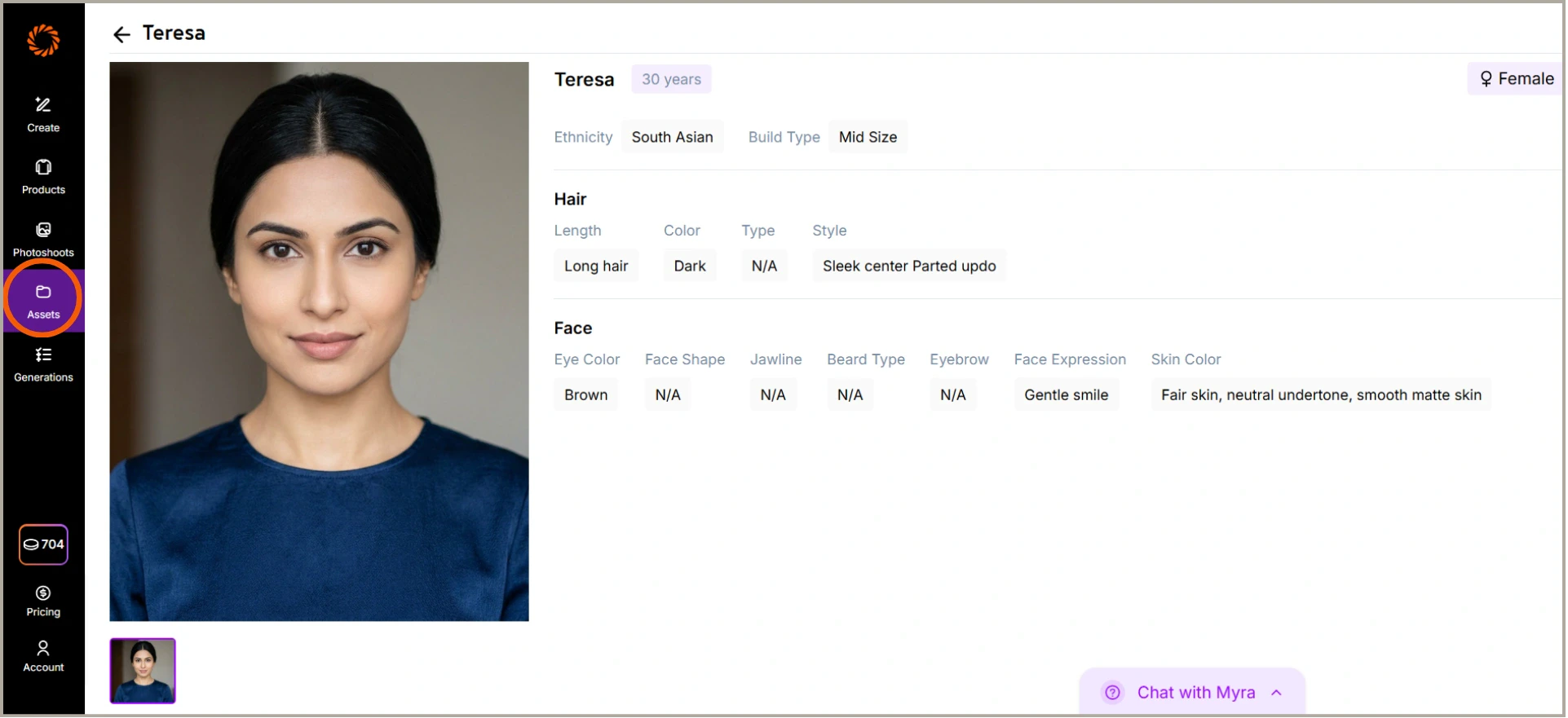
Creating a Custom Model allows you to generate photoshoots using a model that matches your brand's preferred look and identity. Instead of relying only on pre-built models, you can create your own model for more consistent results across campaigns, collections, and product drops. This helps you maintain a cohesive visual style while saving time on repeated model selection.
Follow these steps to create your own custom model in just a few clicks.
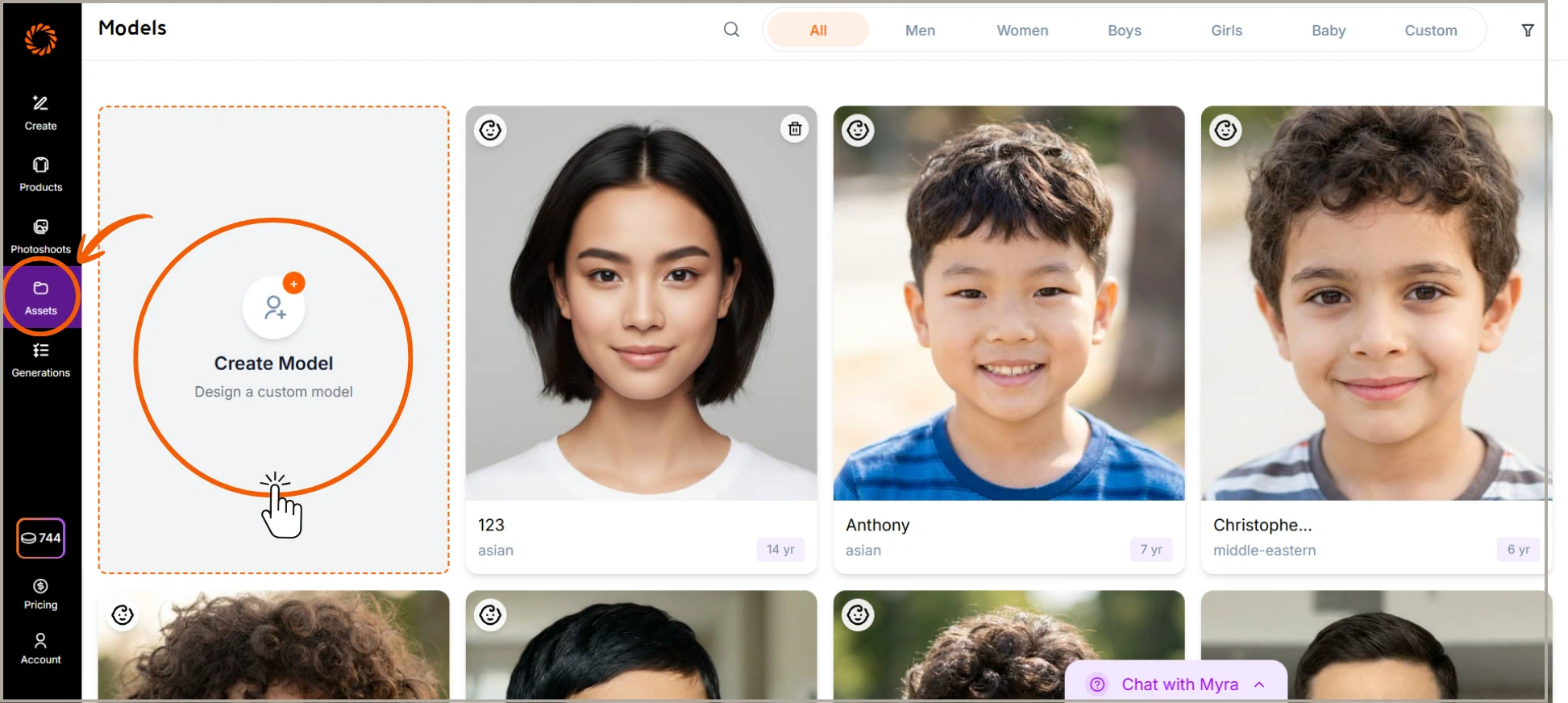
## Step 1: Go to Assets and Create Model
Go to the **Assets** section on the left pane and click on **Create Model** to start generating a custom model for your photoshoot.
 ## Step 2: Select Model Identity
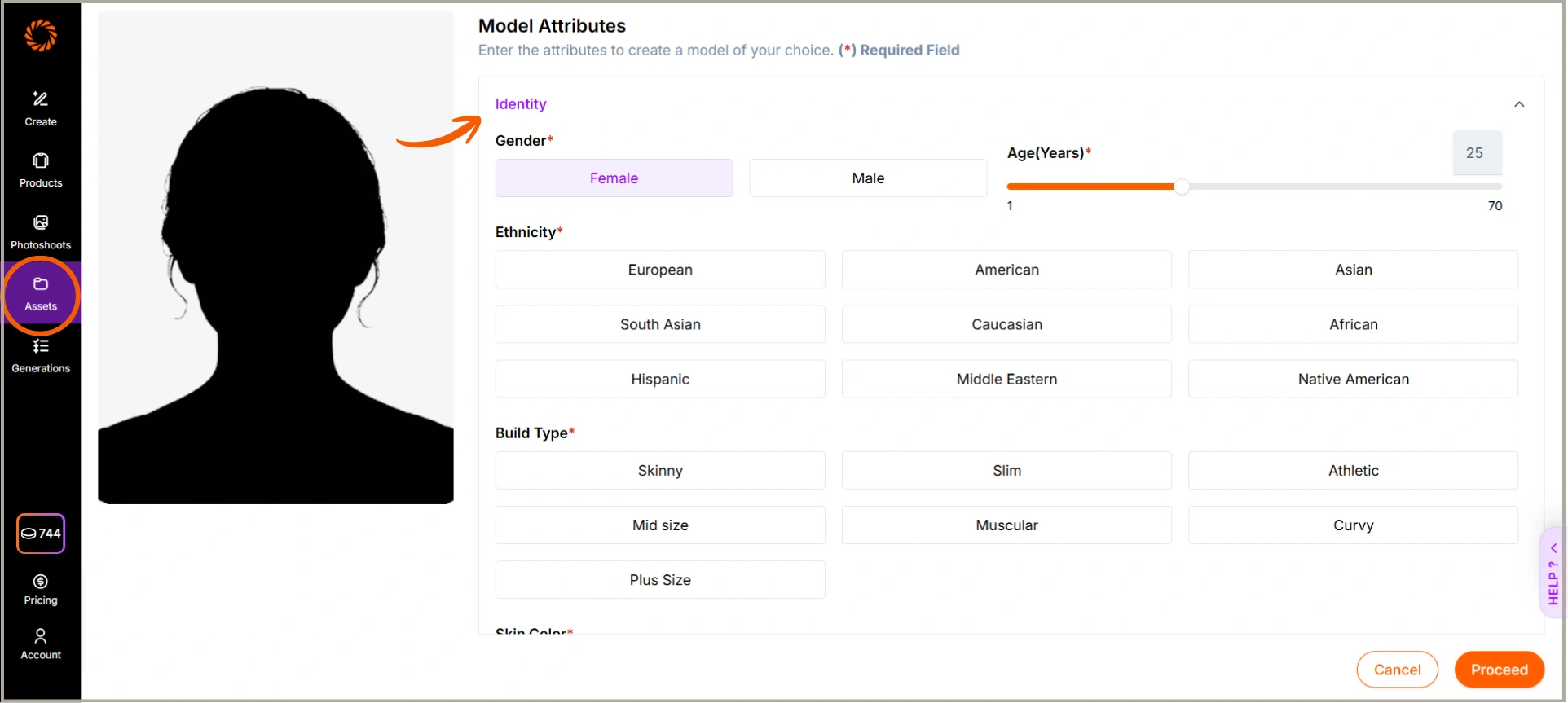
Choose the model's **identity attributes**, including gender, age, ethnicity, body type, and skin tone. These details help define the overall look of your model.
## Step 2: Select Model Identity
Choose the model's **identity attributes**, including gender, age, ethnicity, body type, and skin tone. These details help define the overall look of your model.
 ## Step 3: Choose Model Appearance
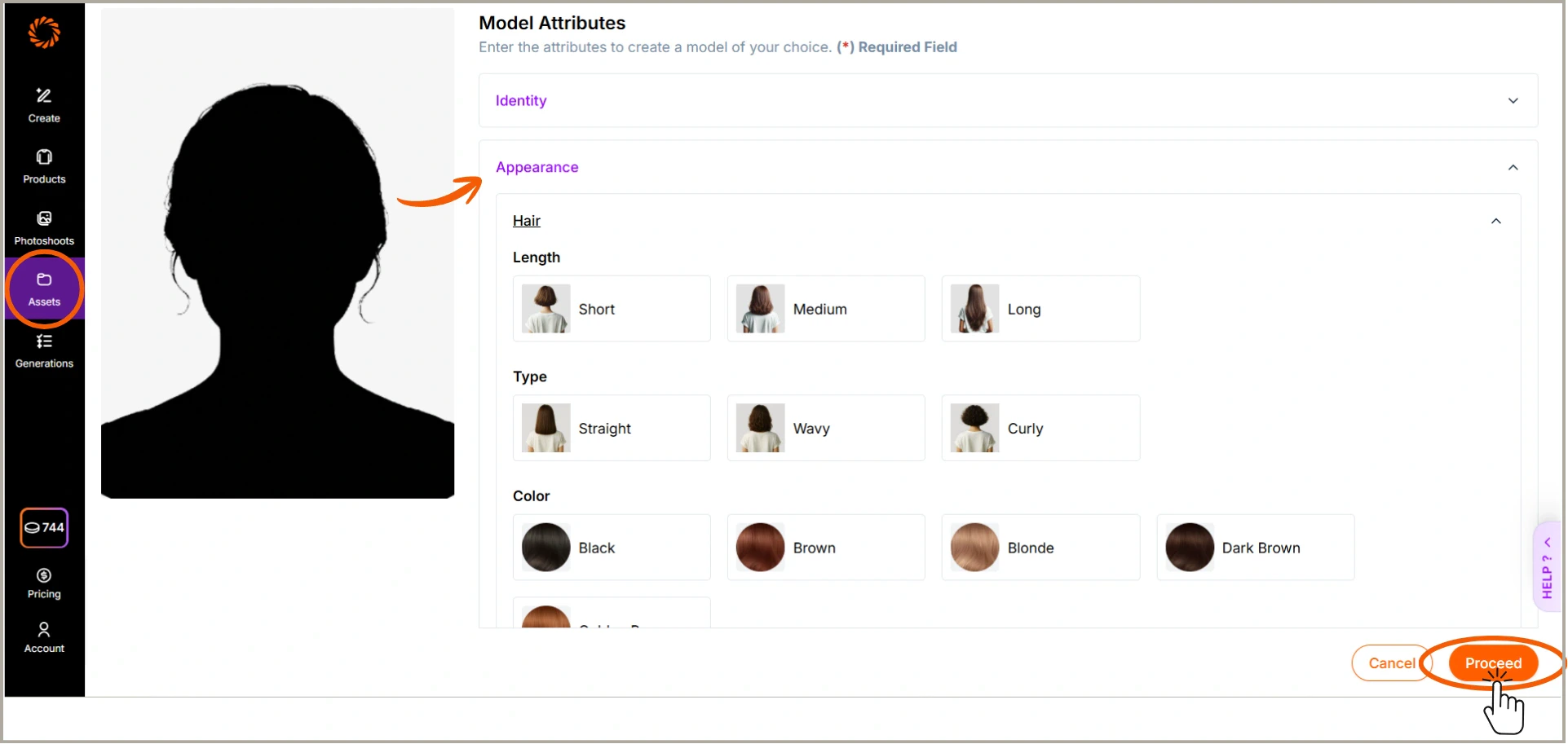
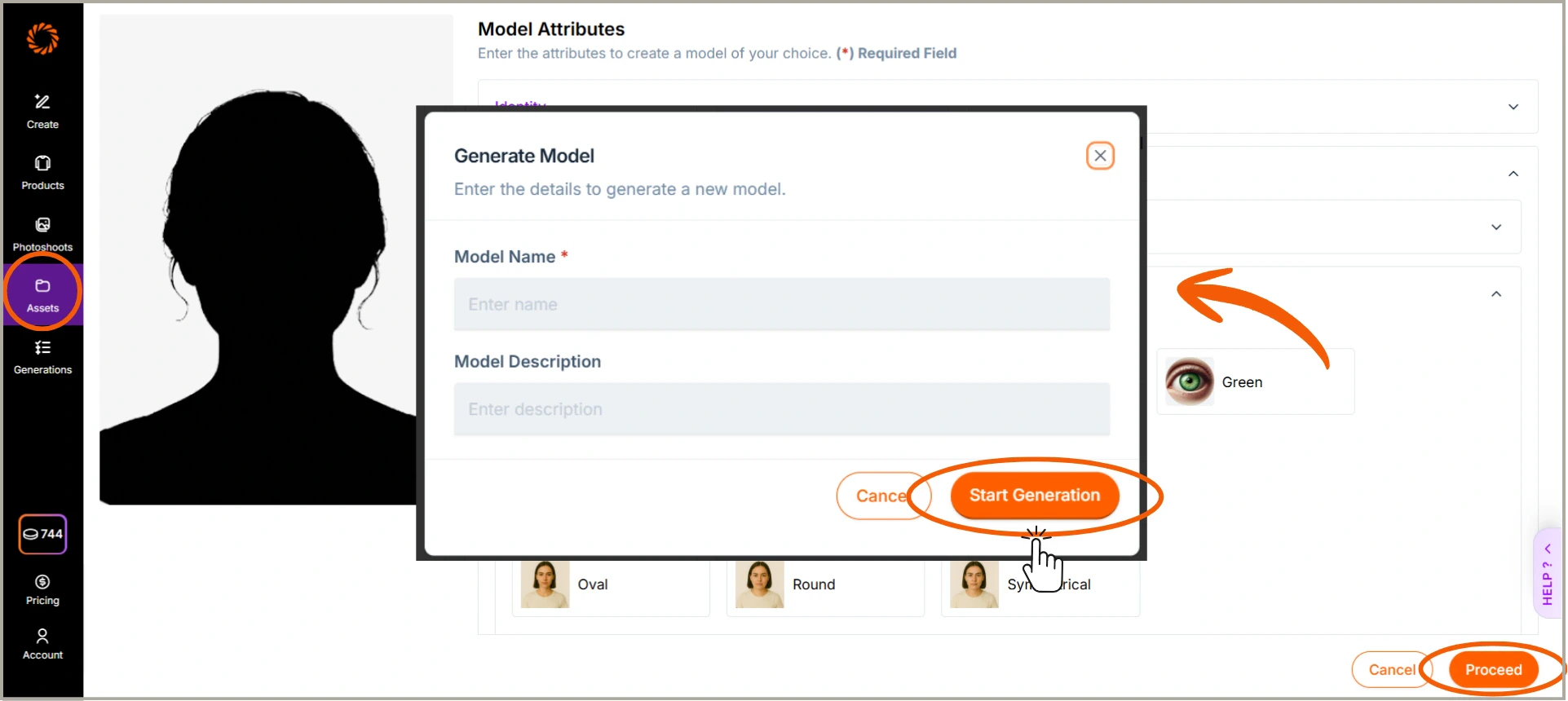
Customize the model's **appearance** by selecting hair length, hair type, hair color, and other visual features. Once done, click **Proceed** to generate your model.
## Step 3: Choose Model Appearance
Customize the model's **appearance** by selecting hair length, hair type, hair color, and other visual features. Once done, click **Proceed** to generate your model.
 You will then be prompted to enter a **Model Name** and an optional **Model Description** to identify your model. Once done, click **Start Generation** to create your custom model.
 A custom model is generated and added to your library, ready to be selected and used in photoshoots.