> ## Documentation Index
> Fetch the complete documentation index at: https://docs.getayna.com/llms.txt
> Use this file to discover all available pages before exploring further.
# Refine a Generated Image
If you are not satisfied with your generated image, you have two refinement options available. You can **regenerate the image** to instantly create a fresh version, or **request an edit by sharing your feedback with our team**, who will make the adjustments and deliver the updated image within your plan's turnaround time. These options let you refine results without starting over, helping you achieve the best outcome faster.
**Both regeneration and assisted edits are included in your plan and do not consume any additional credits.** The number of regenerations available depends on your plan, with at least one regeneration provided per image.
Follow these steps to refine a generated image in just a few clicks.
## Method 1: To Regenerate Image
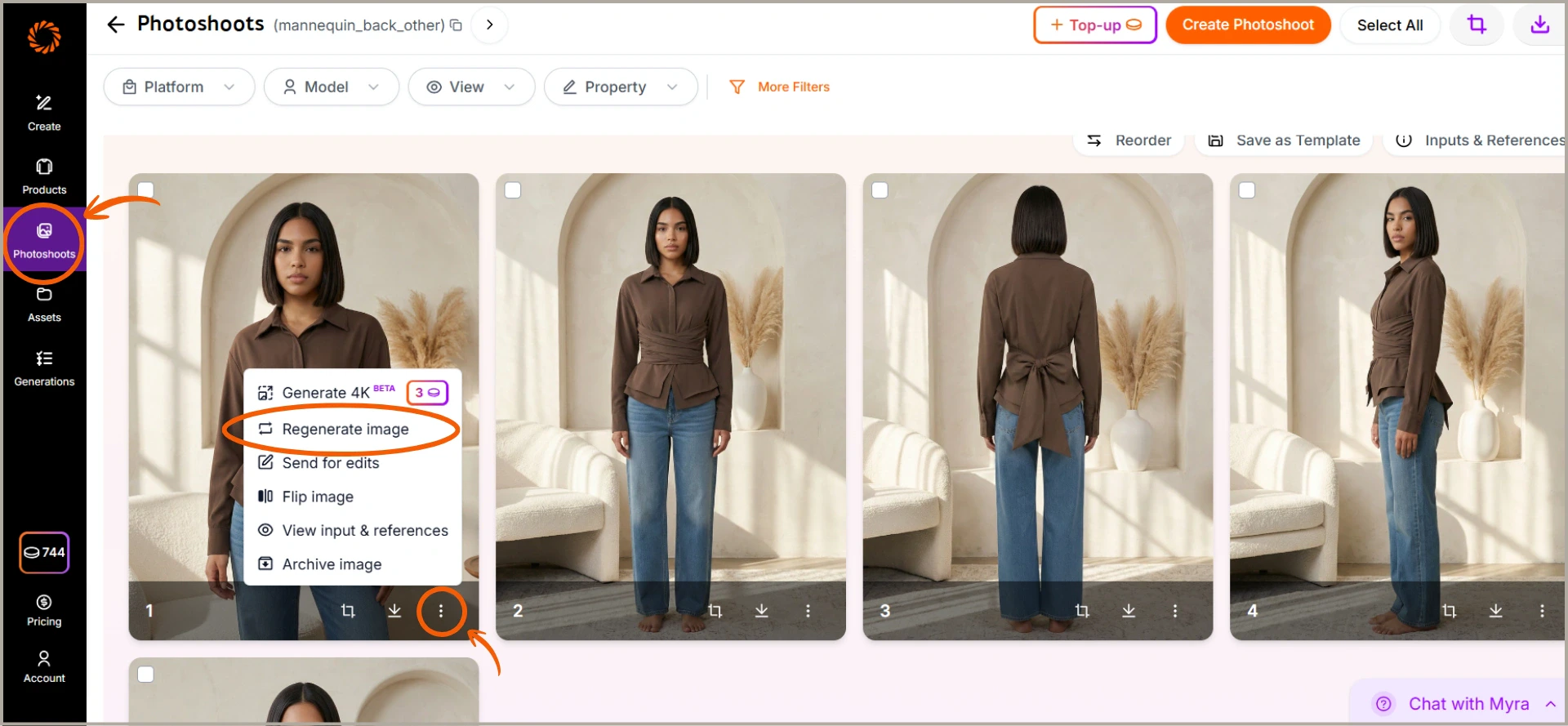
Click on the **three-dot menu** on any generated image, select **Regenerate Image** to instantly generate a new version.
 ## Method 2: To Send Images for Editing
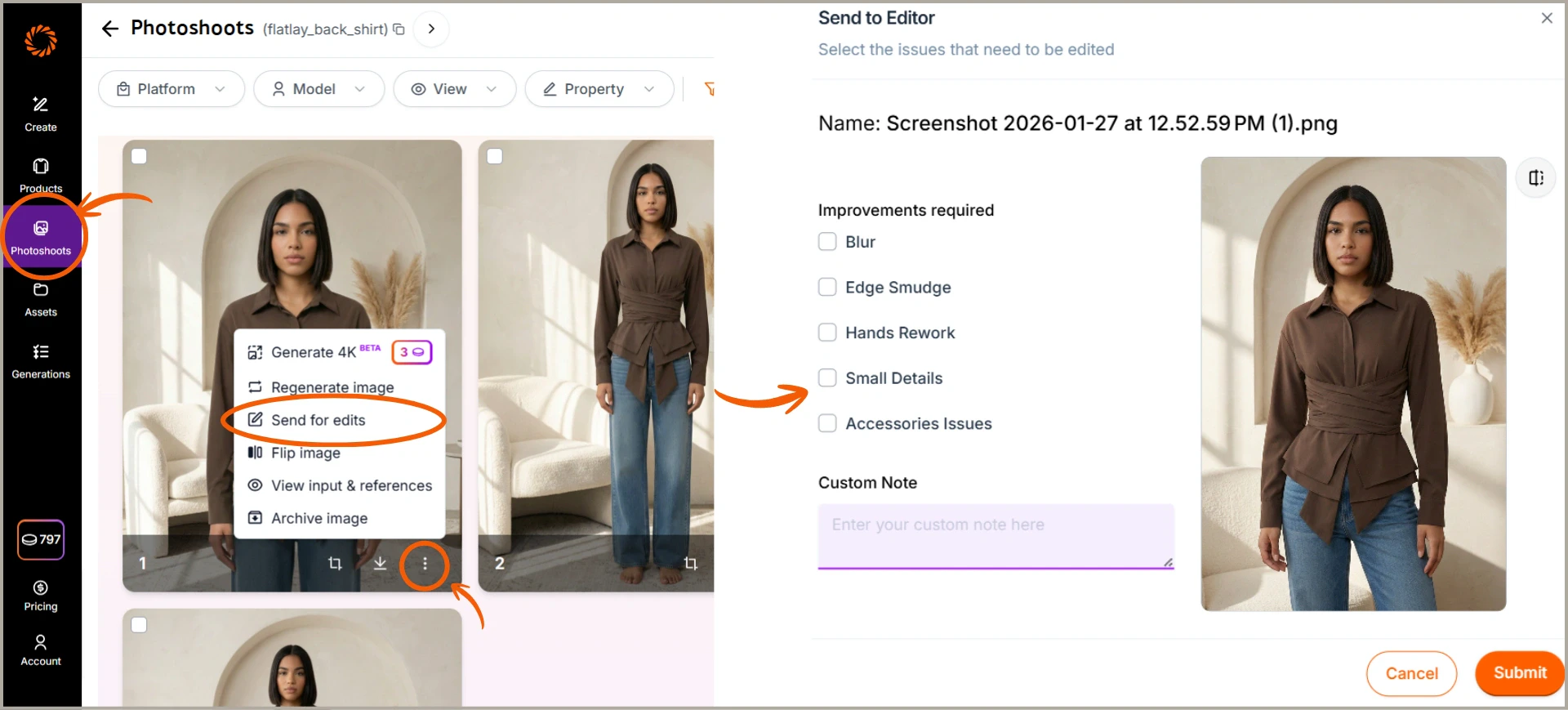
Open the photoshoot folder, select the image you want to edit, click the three dots, choose **Send for edits**, select the required edit options (Blur, Edge smudge, Hands rework, Small details, Accessories issues, etc.), add any specific instructions in **Custom Note** if needed, and click **Submit**.
## Method 2: To Send Images for Editing
Open the photoshoot folder, select the image you want to edit, click the three dots, choose **Send for edits**, select the required edit options (Blur, Edge smudge, Hands rework, Small details, Accessories issues, etc.), add any specific instructions in **Custom Note** if needed, and click **Submit**.