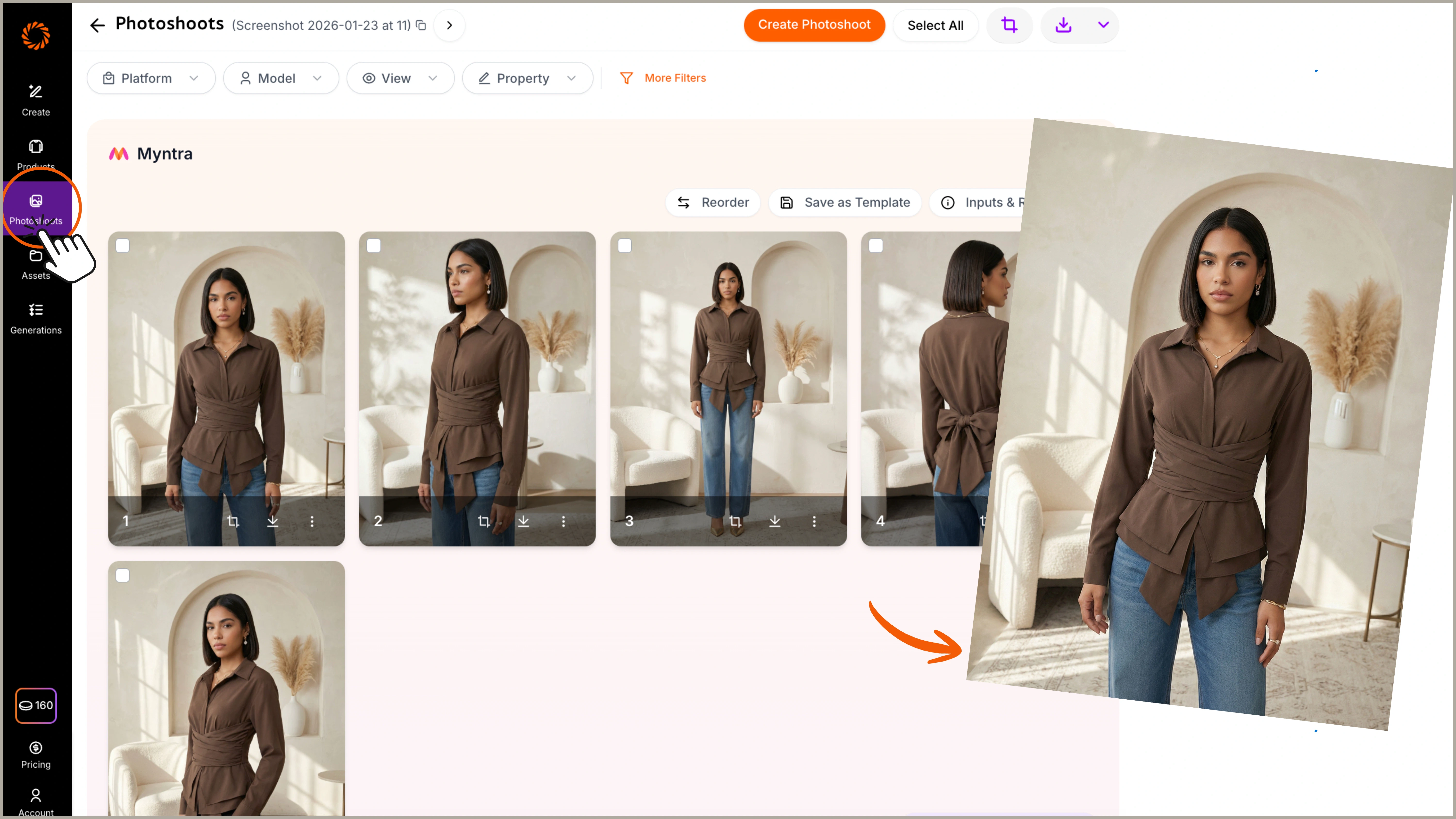
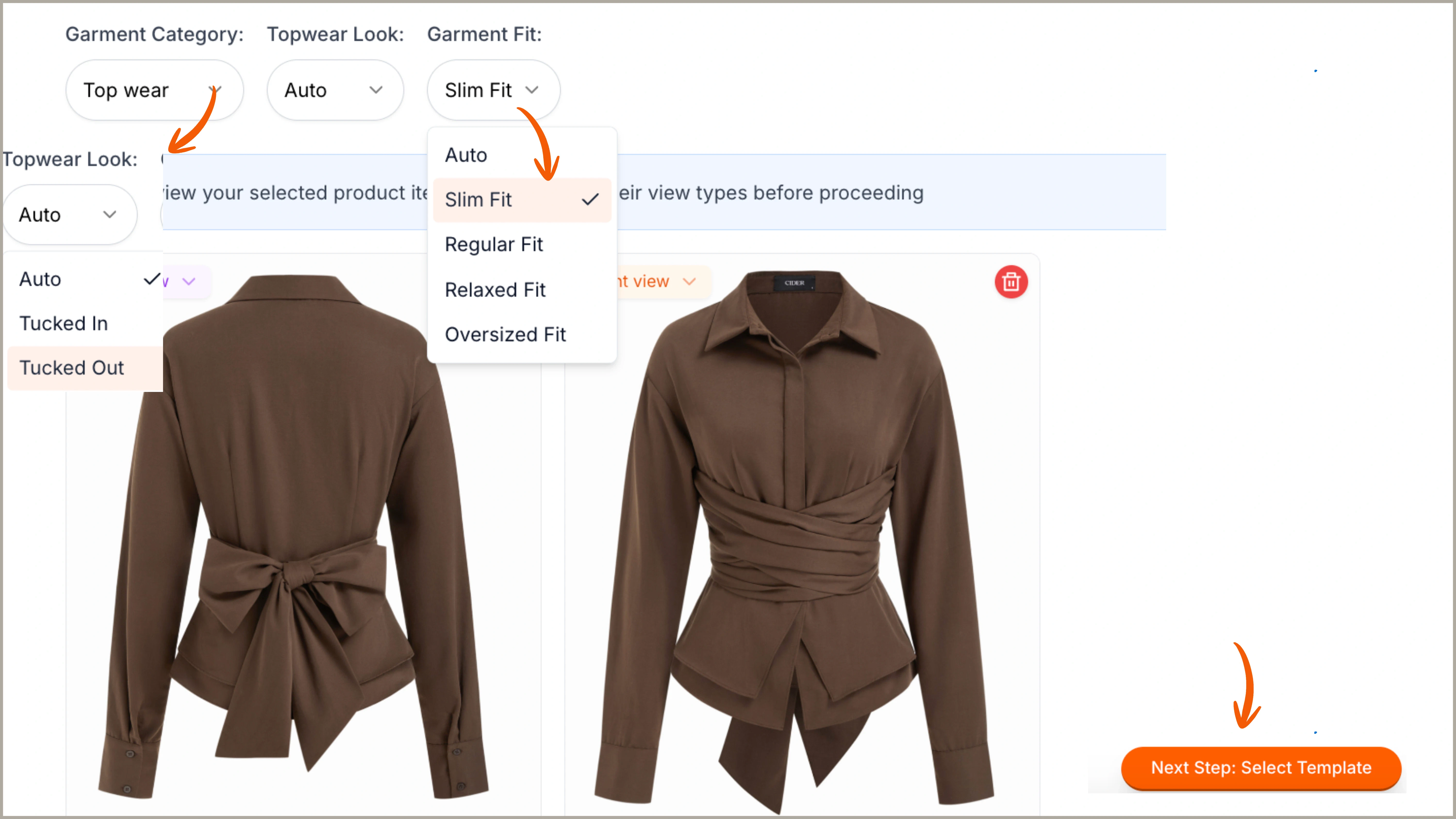
Step 1: Choose Your Product & Photoshoot Specifications
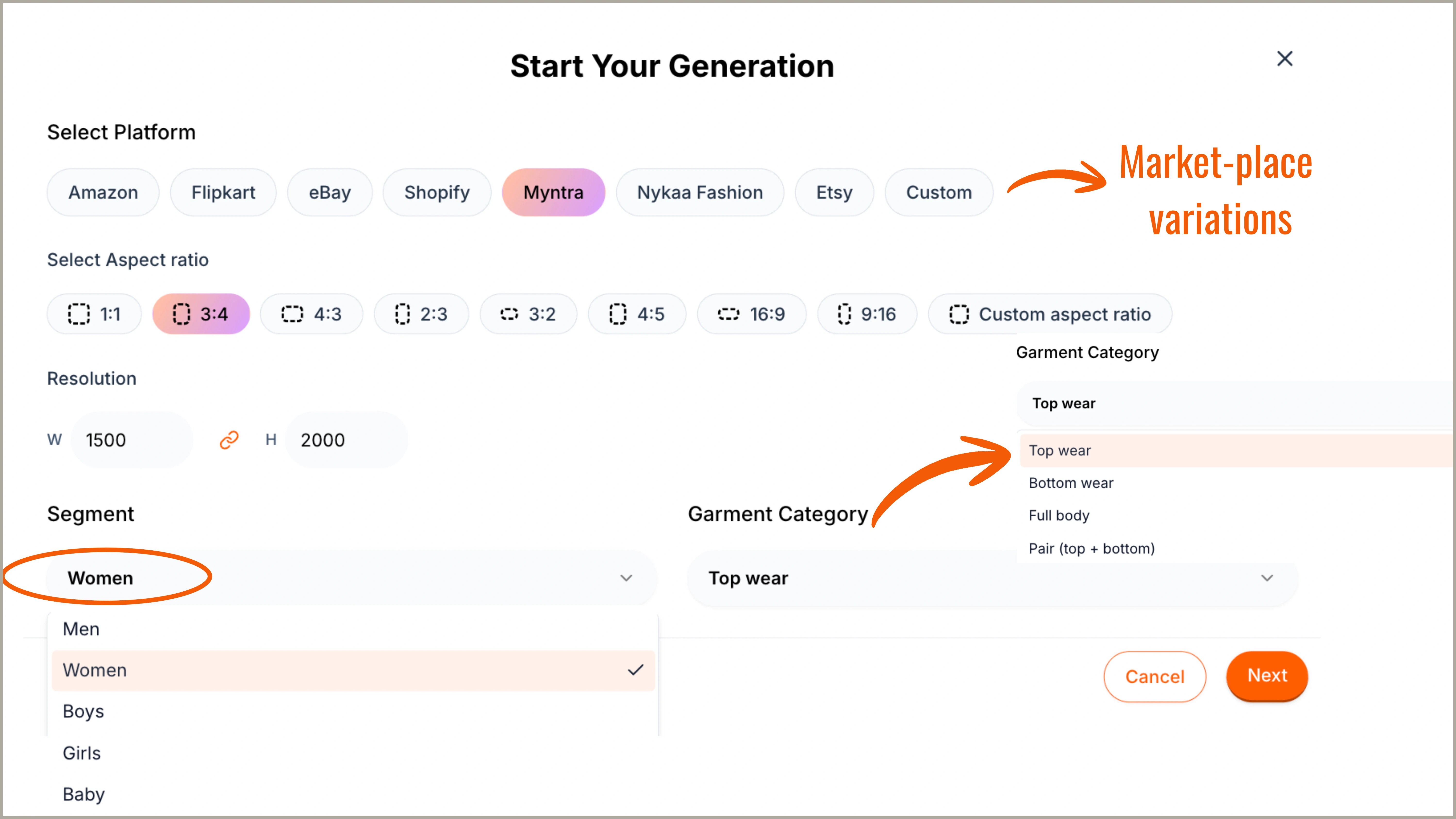
Click on “Start a Photoshoot” on the home page to begin creating your virtual photoshoot. Select the garment category and gender. Ayna also lets you generate marketplace-ready images for platforms like Myntra, Nykaa Fashion, Amazon, and even custom ratios, eliminating the need for manual resizing or cropping.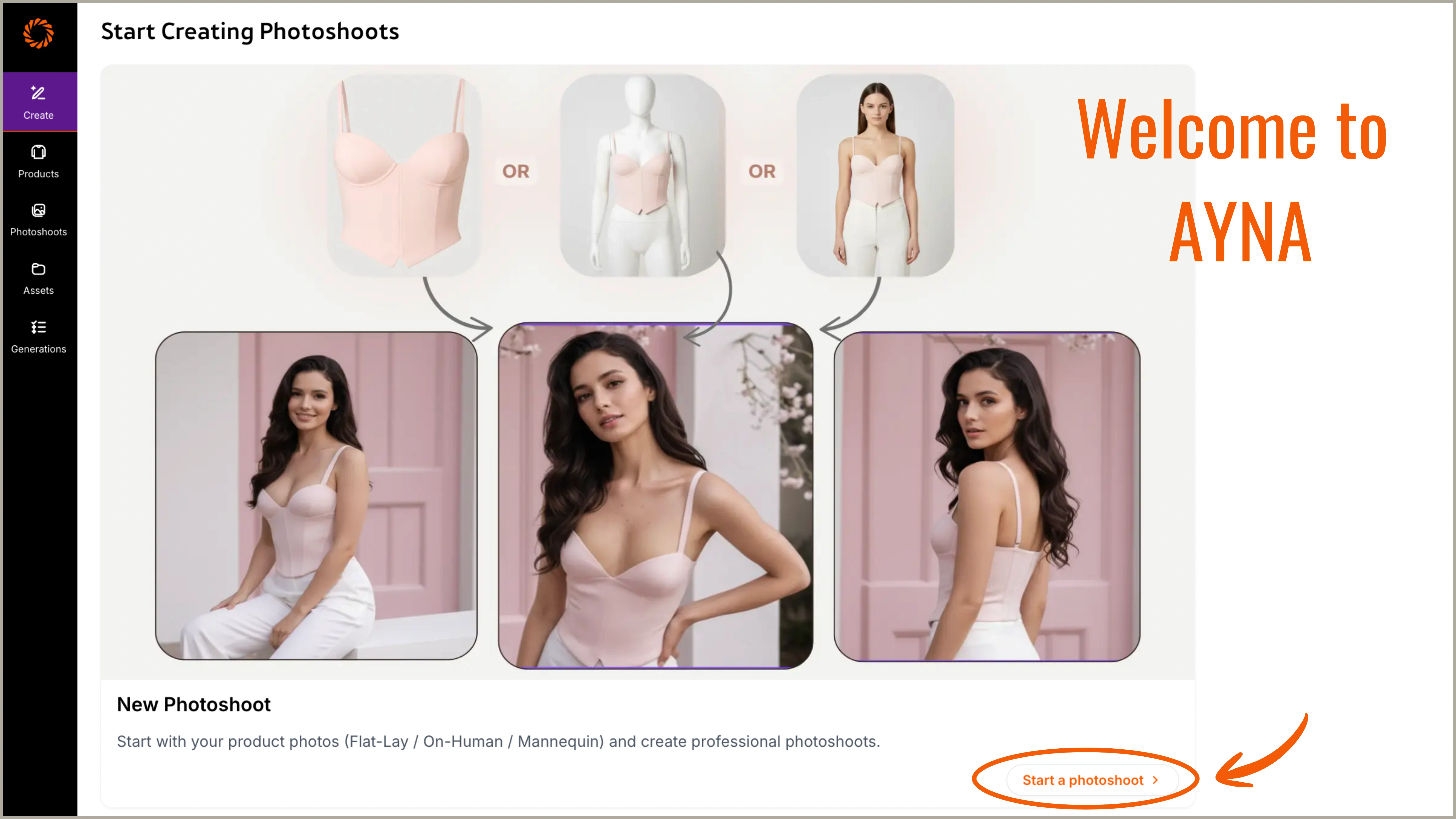
Step 2: Choose your Photoshoot Design
After your input is processed successfully, you need to choose your photoshoot design, including poses, models, backgrounds, etc. There are 2 ways to proceed:Method (a): Proceed with Templates
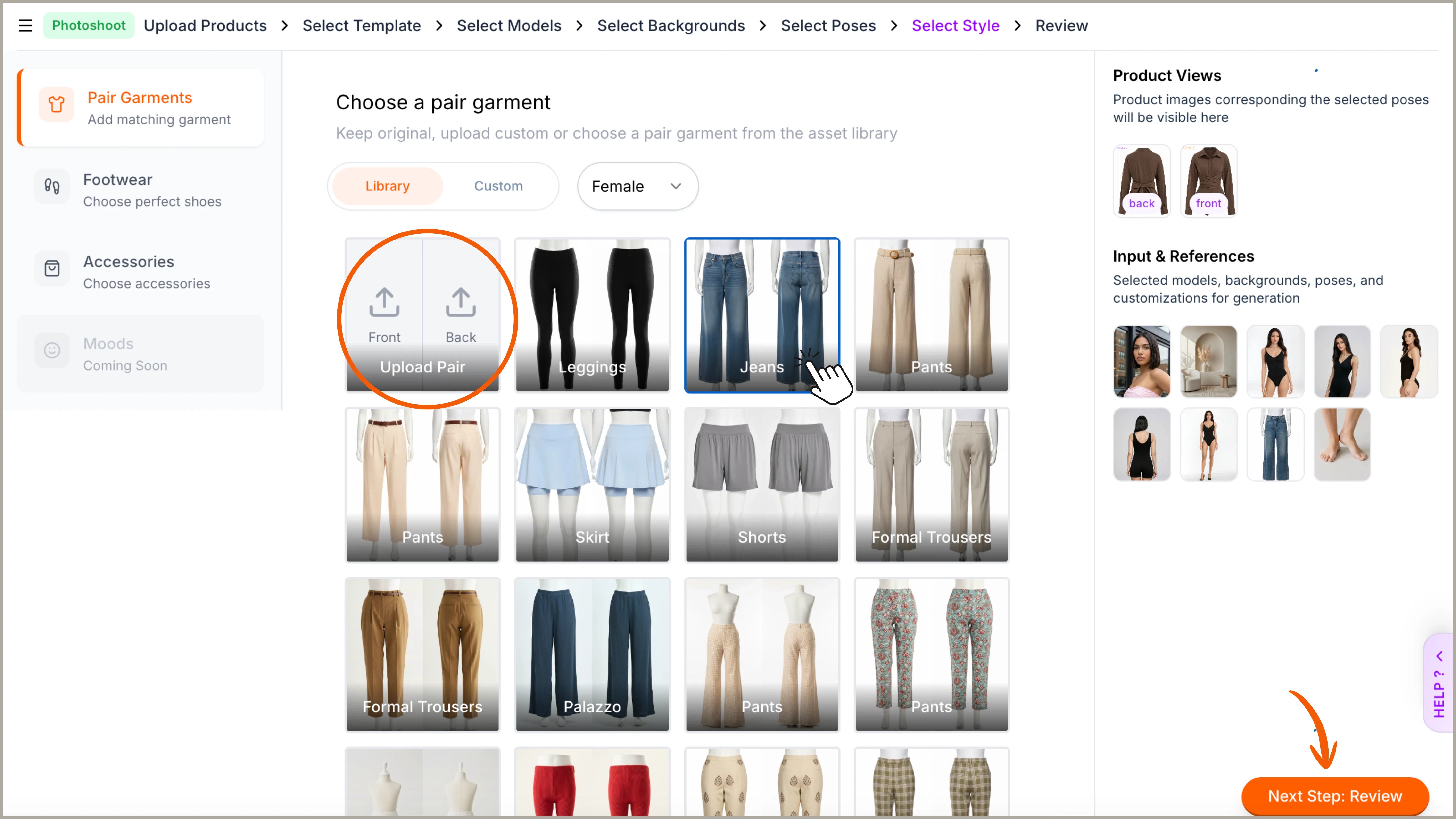
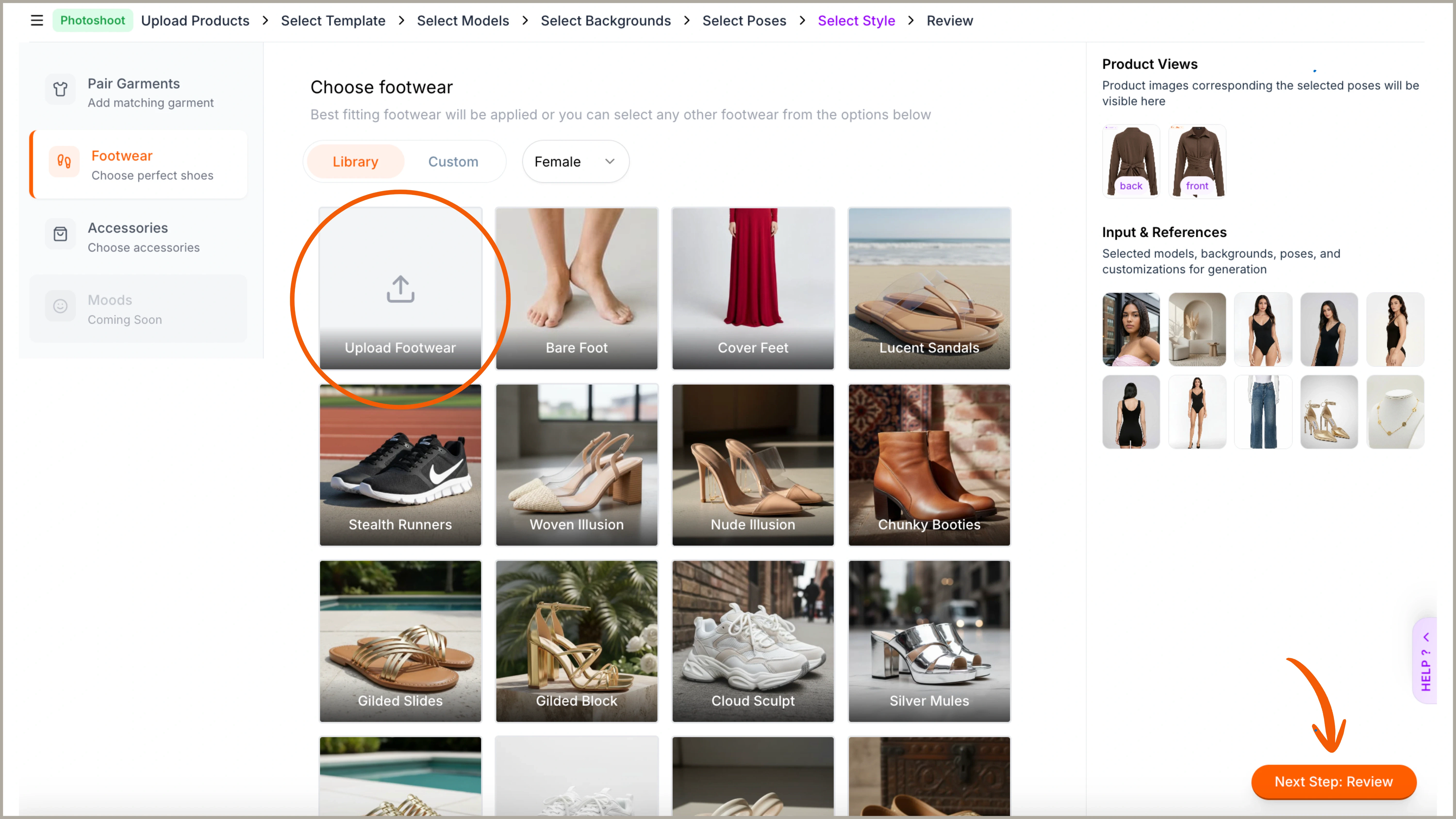
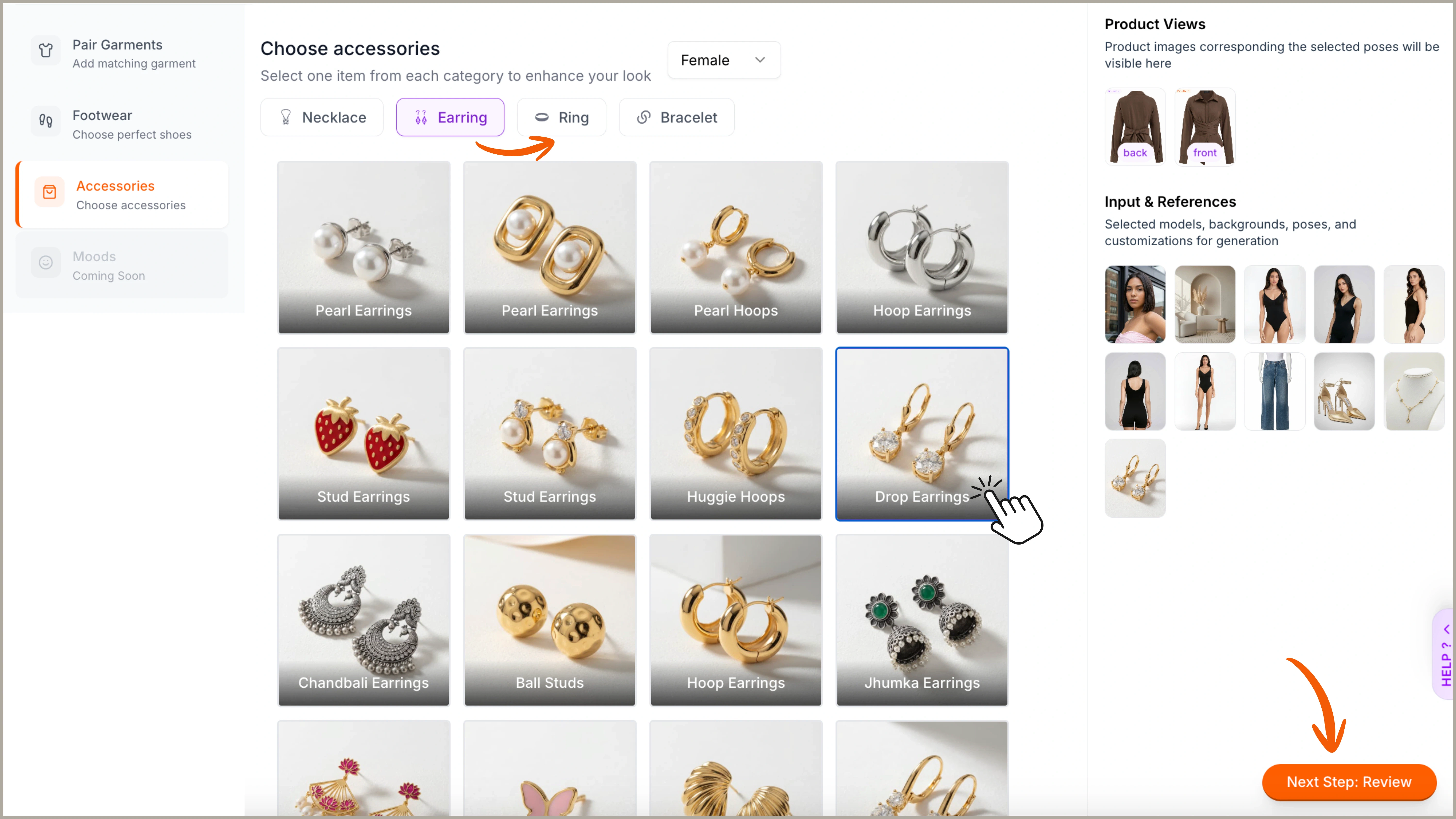
Templates offer pre-saved inputs with predefined models, backdrops, and poses, which you can review before generating any images. You can choose a template of your choice, either from our pre-built library of 150+, or your own custom templates, and proceed to the Review Page. On the review page, you can view all pre-saved inputs, including model poses, styles, and accessories. You can customise any of these options, and once satisfied, click Generate to create your images.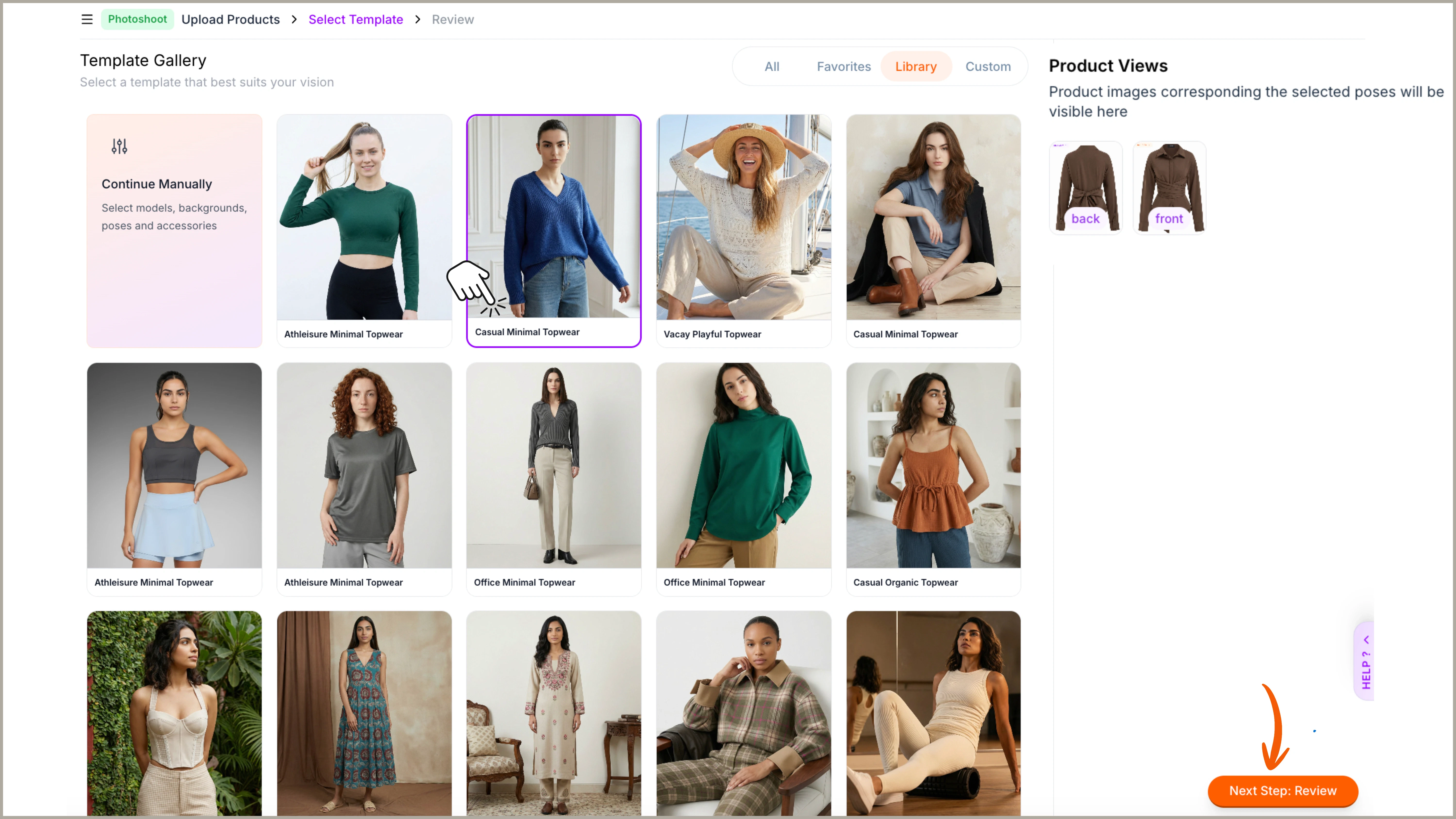
Method (b): Choose your Photoshoot Design (Manual)
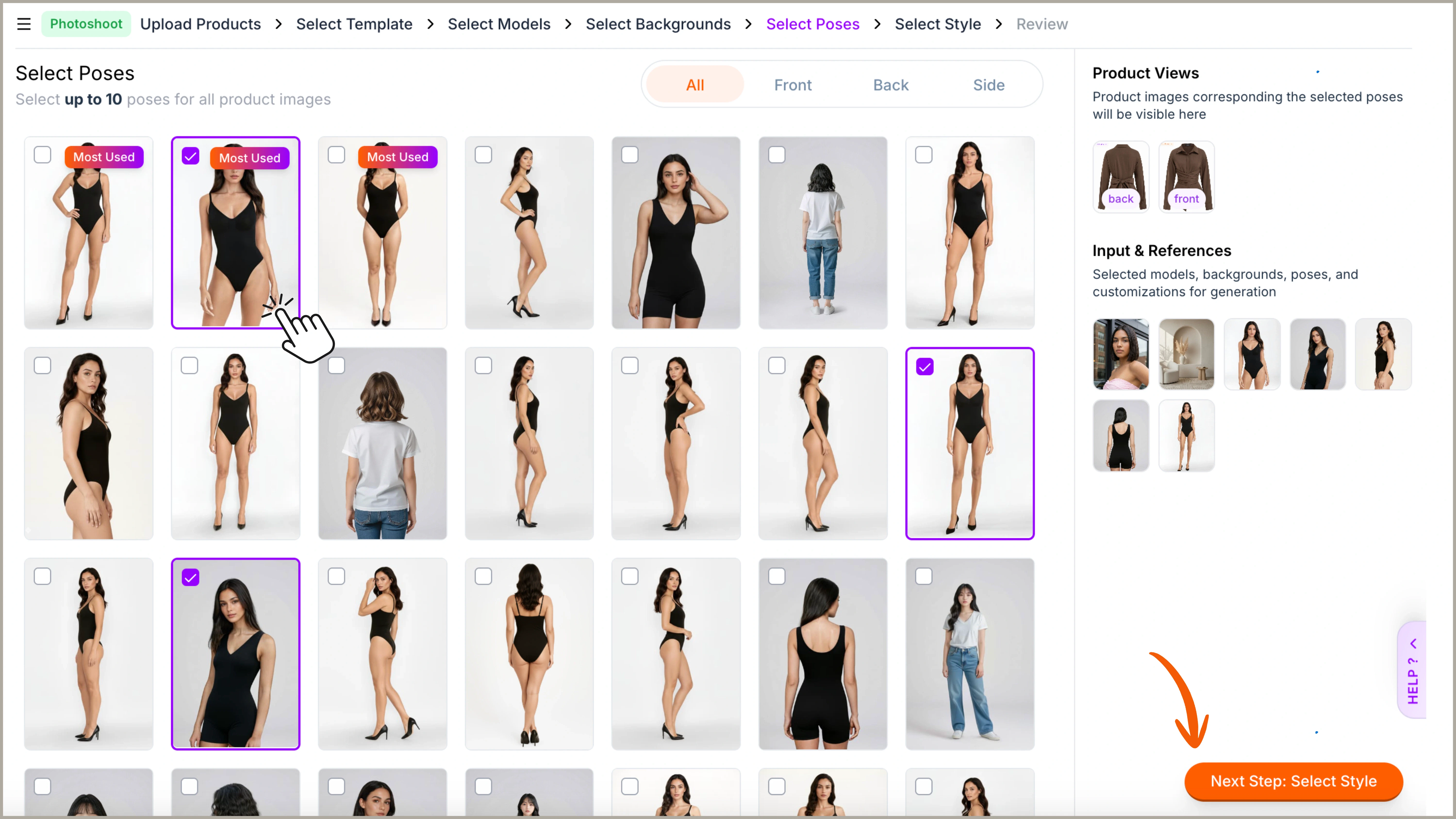
Using pre-saved templates is optional. You can also proceed with your photoshoot manually, gaining complete creative freedom over your photoshoot. You will start with selecting a model: Ayna offers a wide range of models across Menswear, Womenswear, and Kidswear, with filters for age and ethnicity to match your brand. You can also create your own custom model if you have specific requirements.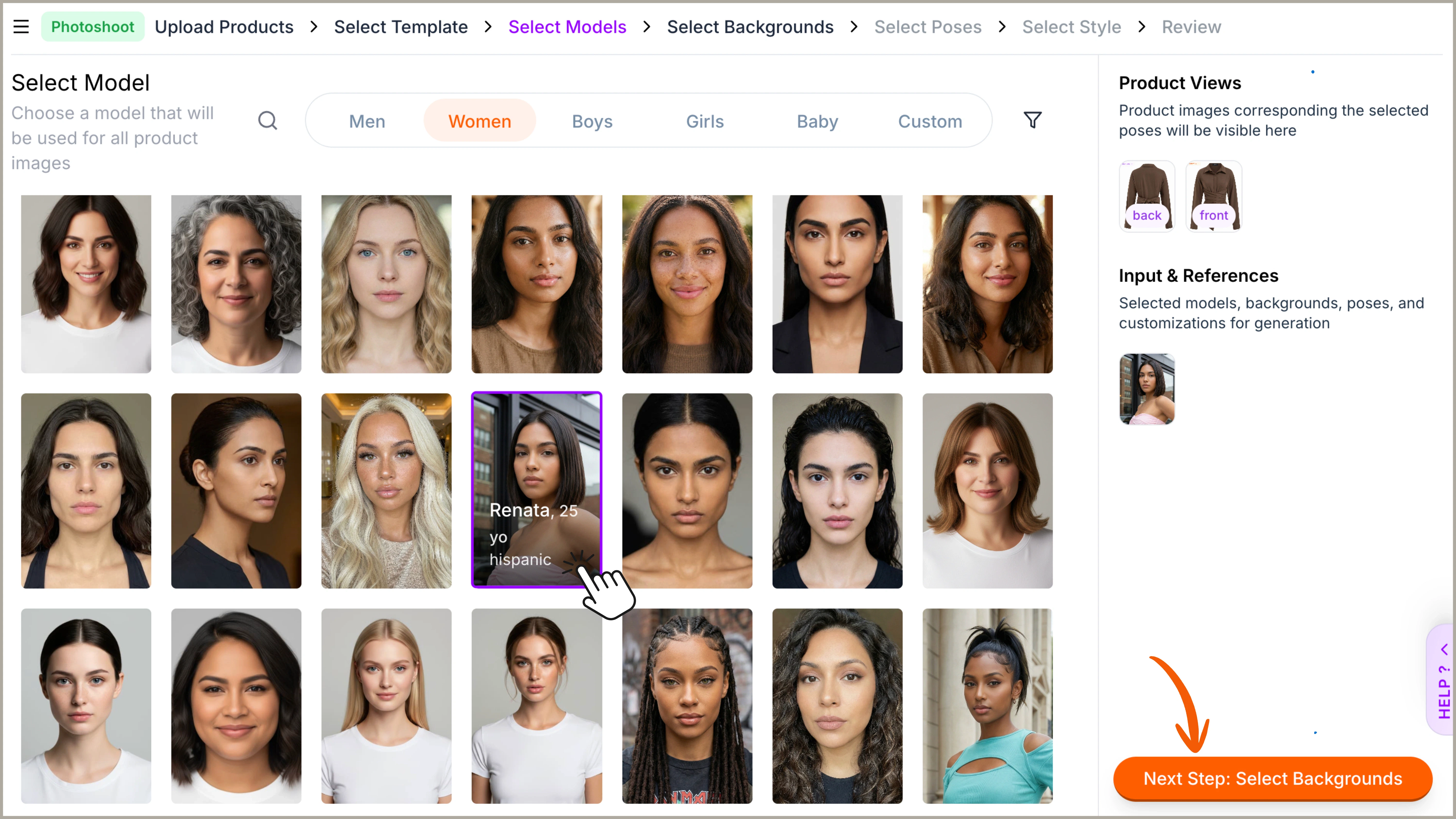
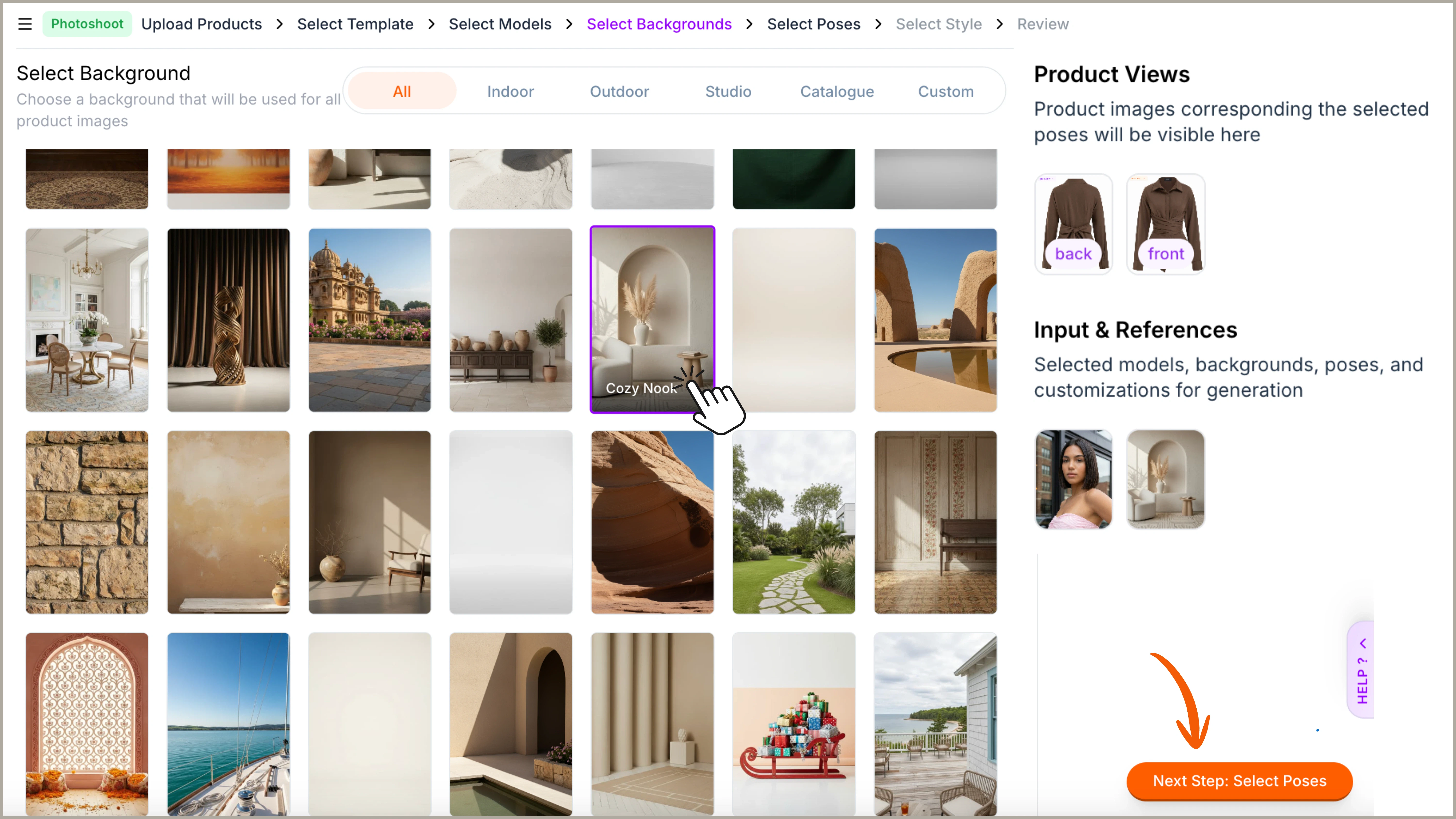
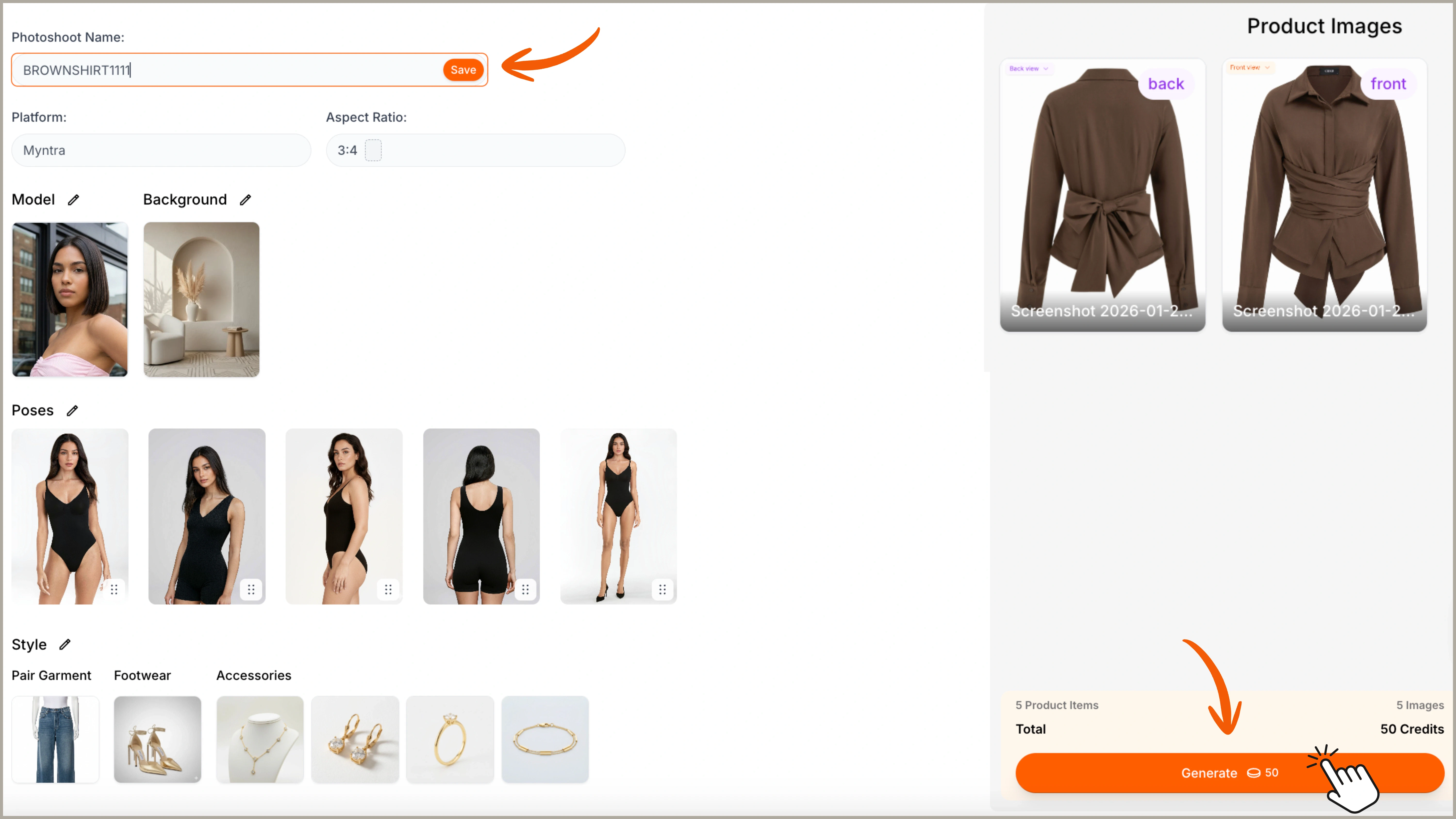
Step 3: Review your Selections
Once you proceed either manually or with templates, you will land on the final review page. Here, you can align on all the inputs and make last-minute changes, if any.