

Follow the progress
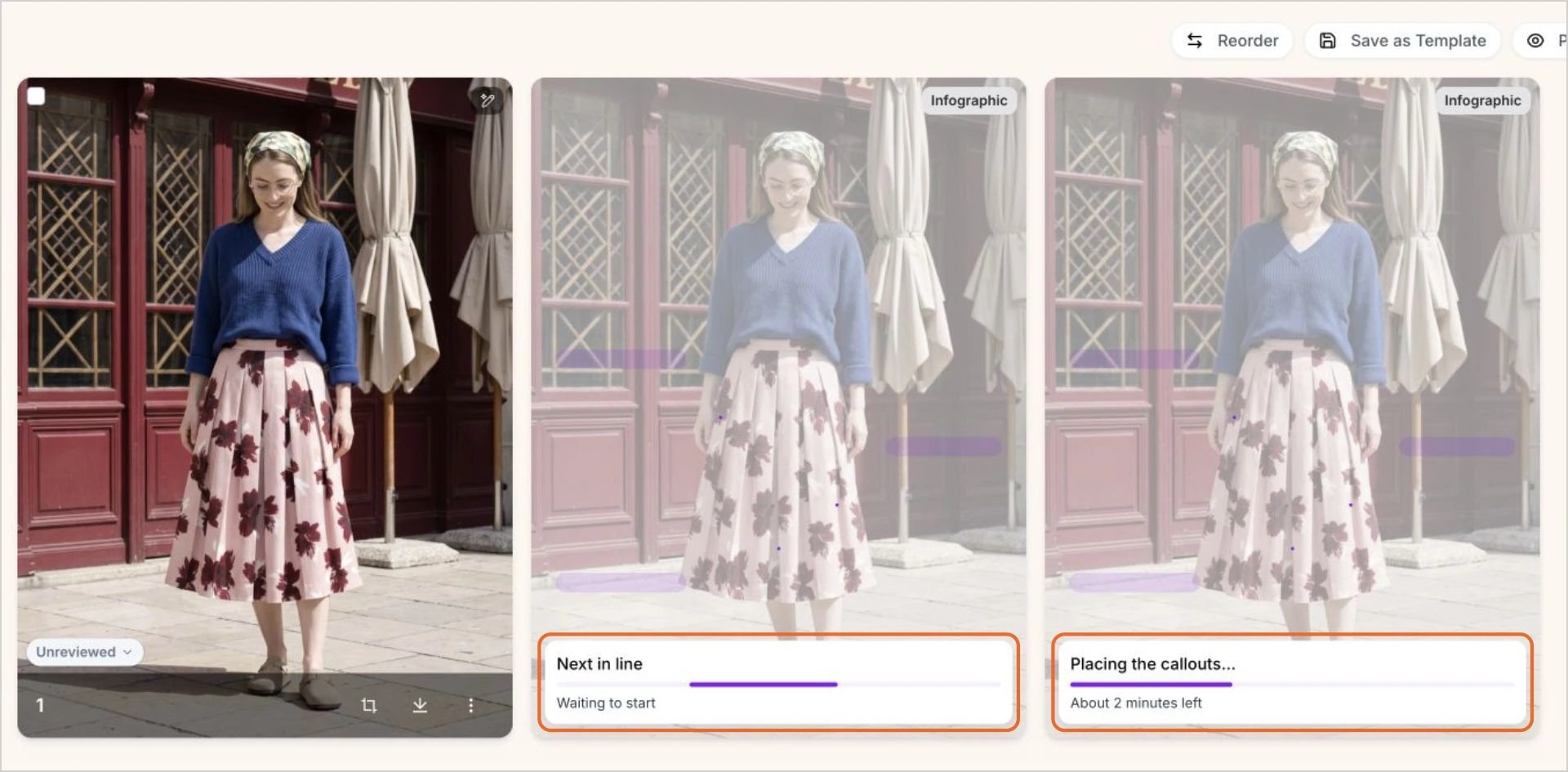
While an infographic is waiting or being created, its card shows your photo with a status:- Waiting to start, Next in line or N ahead of yours: Your infographic is in the queue.
- Steps such as Reading the reference…, Sketching the layout… and Placing the callouts…, with the time left: Your infographic is being designed.
Find your infographics
Infographics sit right after the image they were made from and carry an Infographic badge. Hover over the badge to see which template was used. To see only your infographics on a product’s page, open the Property filter and choose Infographic.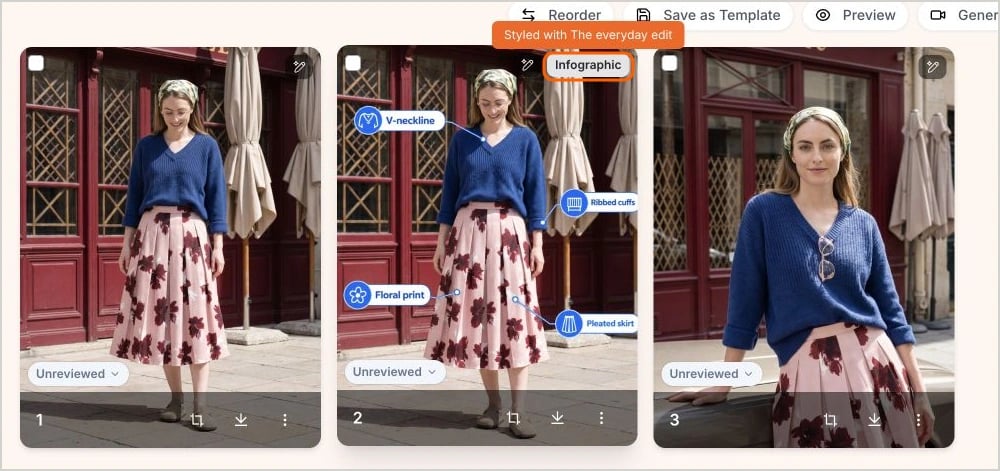
If an infographic fails
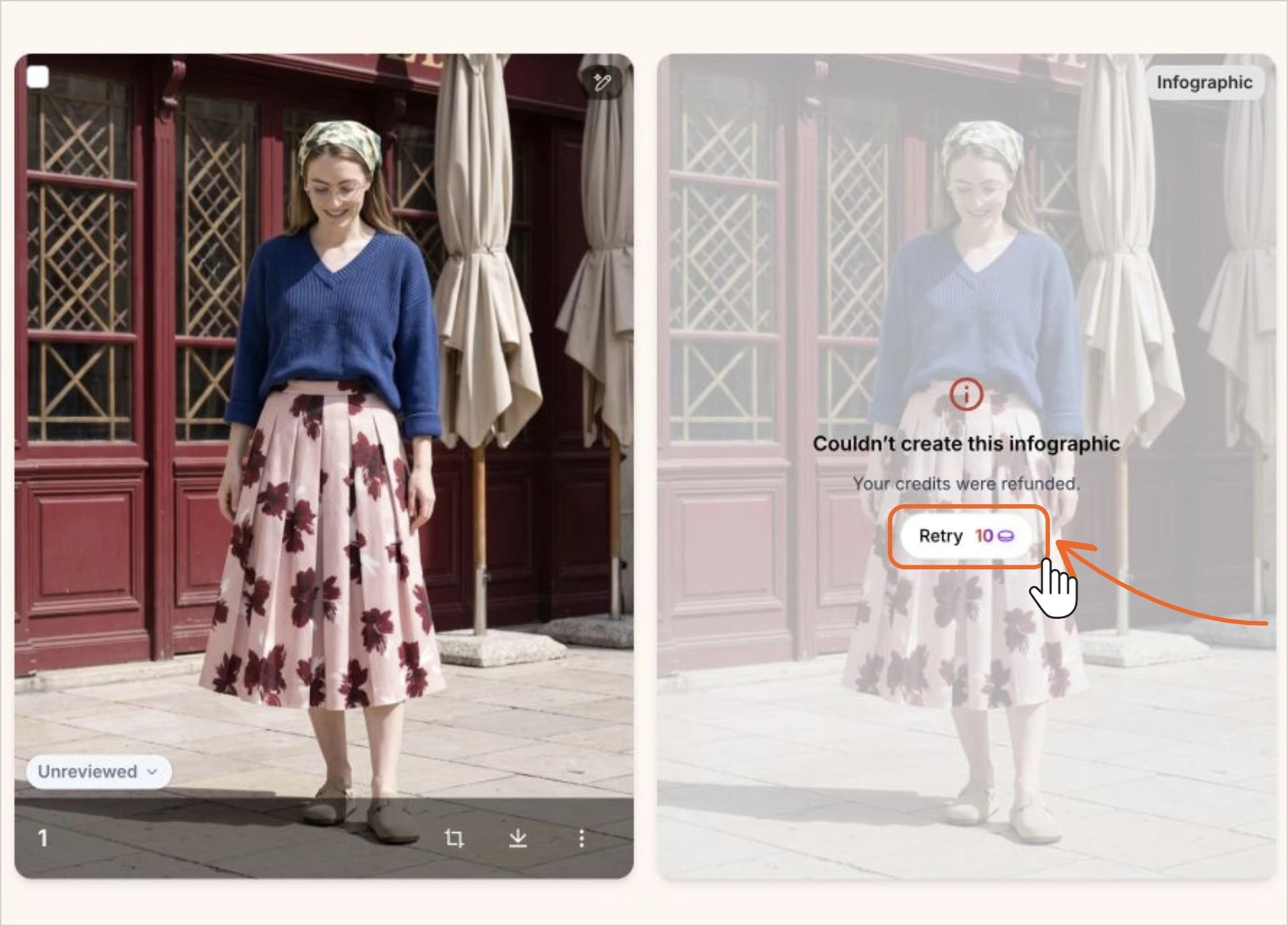
If an infographic can’t be created, its card says Couldn’t create this infographic and Your credits were refunded. The credits go back to your balance automatically. To try again, click Retry. The button shows what a retry costs on your plan, and Studio uses the same design and text as before.Retry creates a new attempt, so it uses credits again at your plan’s current price. If the retry fails too, those credits are refunded as well.
What you can do with a finished infographic
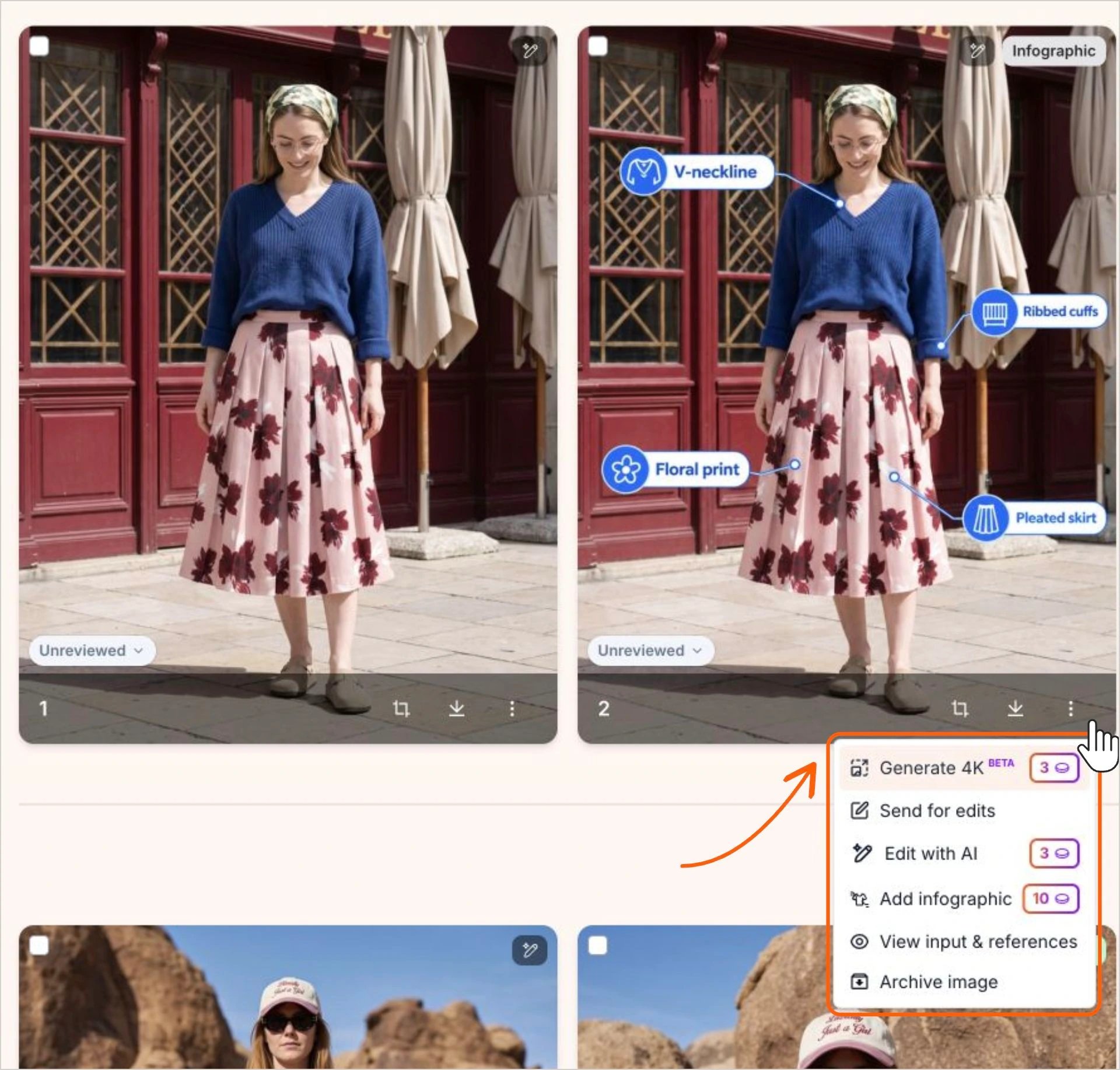
A finished infographic works like any other image in your photoshoot. From its card and its ⋮ menu, you can:- Download it as a PNG or JPEG.
- Create marketplace variation to crop it for a marketplace.
- Generate 4K, on plans that include 4K (on Silver, it offers an upgrade). Infographics made from a 4K photo are already 4K.
- Send for edits to have our editing team polish it. Each infographic has its own edit allowance, separate from the photo it was made from.
- Edit with AI to make quick changes yourself.
- Add infographic to create another infographic from it.
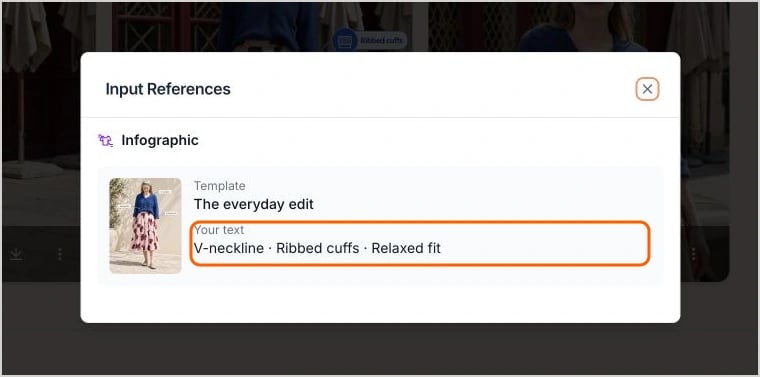
- View input & references to see the design, the template and the text that were used. If you used product text, you’ll see the text Studio wrote for this image.
- Archive image to hide it from your view.
What isn’t available for infographics
- Flip image: Flipping would mirror the text, so it’s turned off for infographics.
- Regenerate image: To try a different look, add a new infographic with another design.
- Changing the text: An infographic’s text can’t be edited after it’s created. Add a new infographic with new text, or use Edit with AI or Send for edits.
- Cover images and catalogue videos: Infographics aren’t used as a product’s cover image or in catalogue videos.