

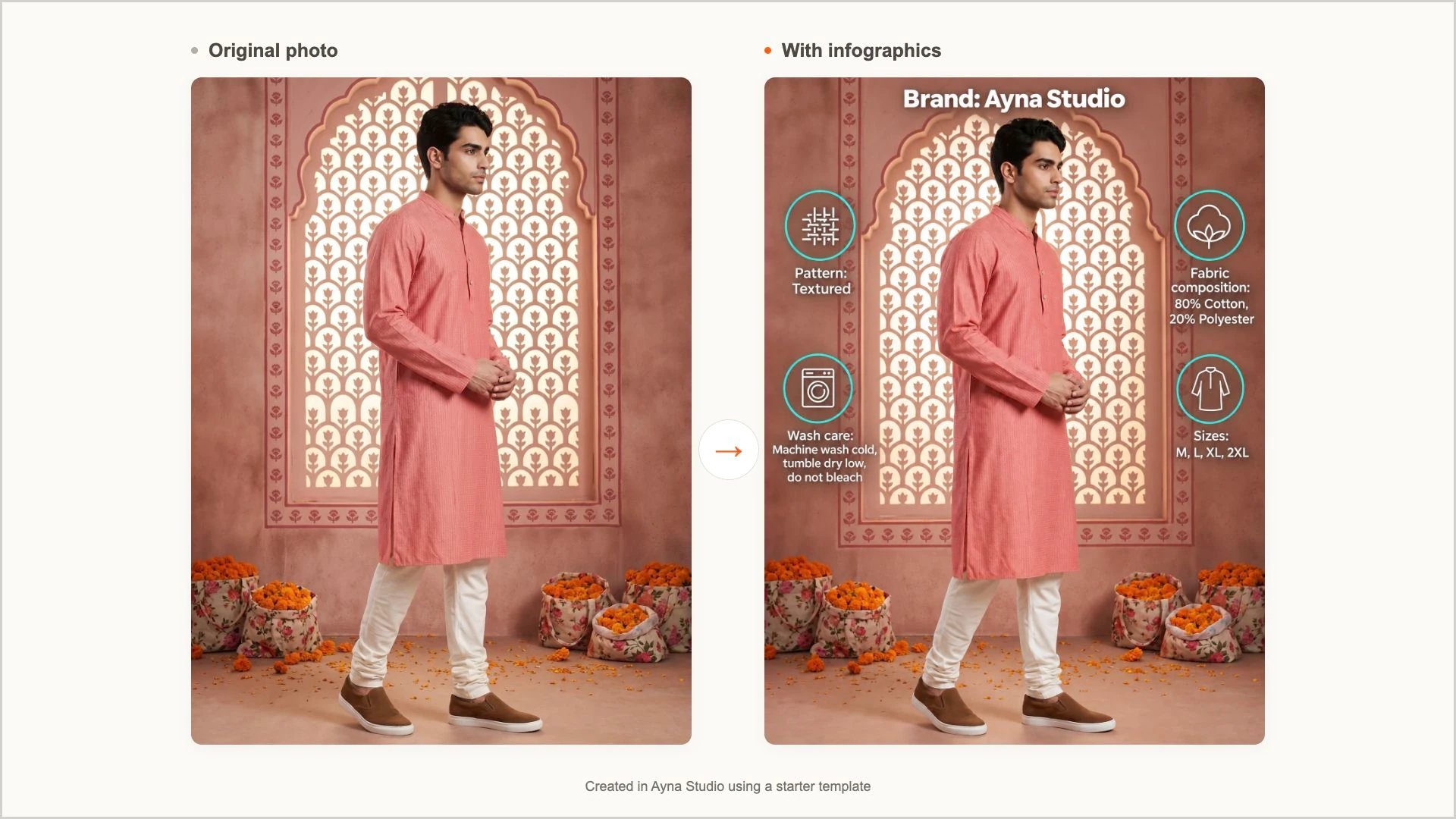
Why use infographics?
- Show the details that sell: Point out features like a V neckline, button details or a wide-leg silhouette right on the photo.
- Stand out on marketplaces: Add polished, informative images to your listings alongside your regular shots.
- Keep your look consistent: Use the same designs across your catalogue, so every product feels part of one brand.
- Save design time: No design tools or designers needed. Pick a design, add your text, and Studio does the rest.
How it works
- Find your look: Choose a starter template or upload your own inspiration. A template is a set of reference designs: images with labels, callouts or layouts you love.
- Match it to your images: Pick a reference design for each image you want to add infographics to.
- Make the details shine: Add your text, then create. Your originals stay saved.
Your original photo is never changed. Each infographic is created as a new image and placed right next to the photo it was made from.
Good to know
- You can add one infographic to an image in each run, and as many as you like over time, even to an image that’s already an infographic.
- Text is optional. Tell Studio what to say, or leave it blank.
- If an infographic can’t be created, the credits for it are refunded automatically.
Where to find Infographics
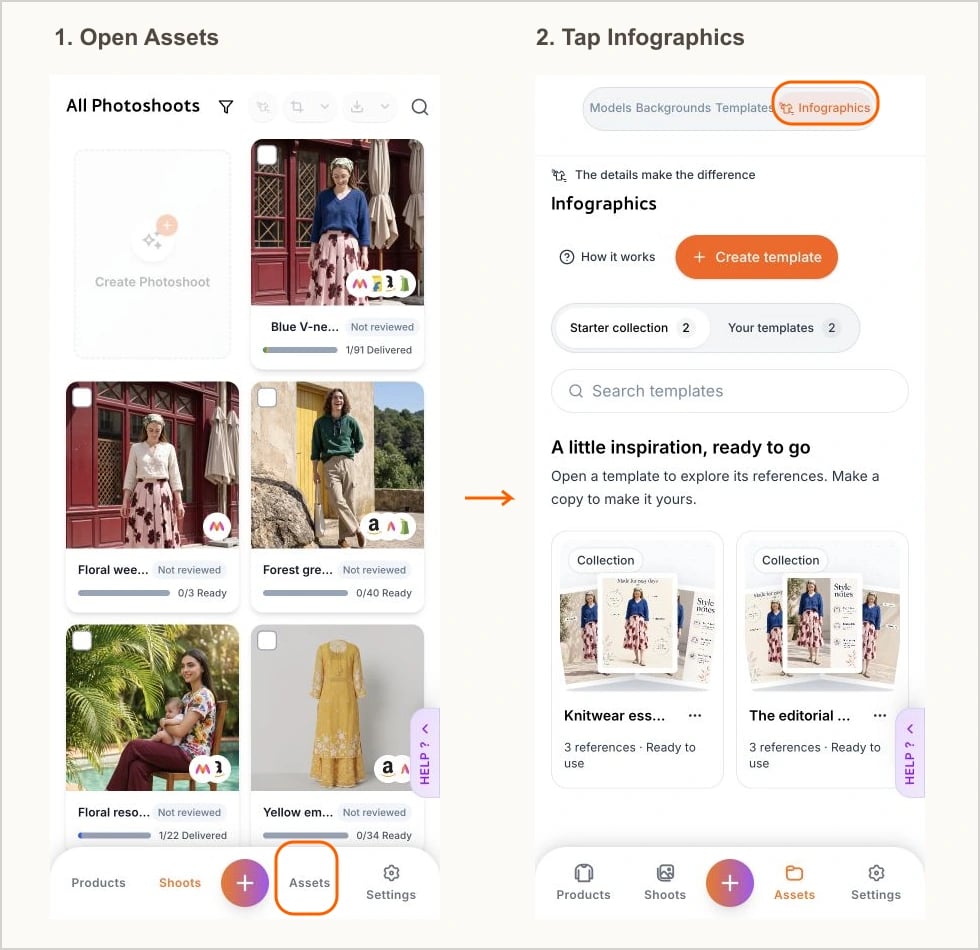
On a computer, click Infographics in the left sidebar (it’s marked NEW). This is your template library, where you browse and create the looks you’ll use. A short guide at the top of the library gives you a quick visual tour: Hide guide folds it away, and How it works brings it back. On a phone or tablet, tap Assets in the bottom navigation, then open the Infographics tab. You add infographics from your images: on a product’s page, or, on Platinum and on Enterprise plans that include bulk generation, to many products at once from Photoshoots. The library is where you find and create the designs.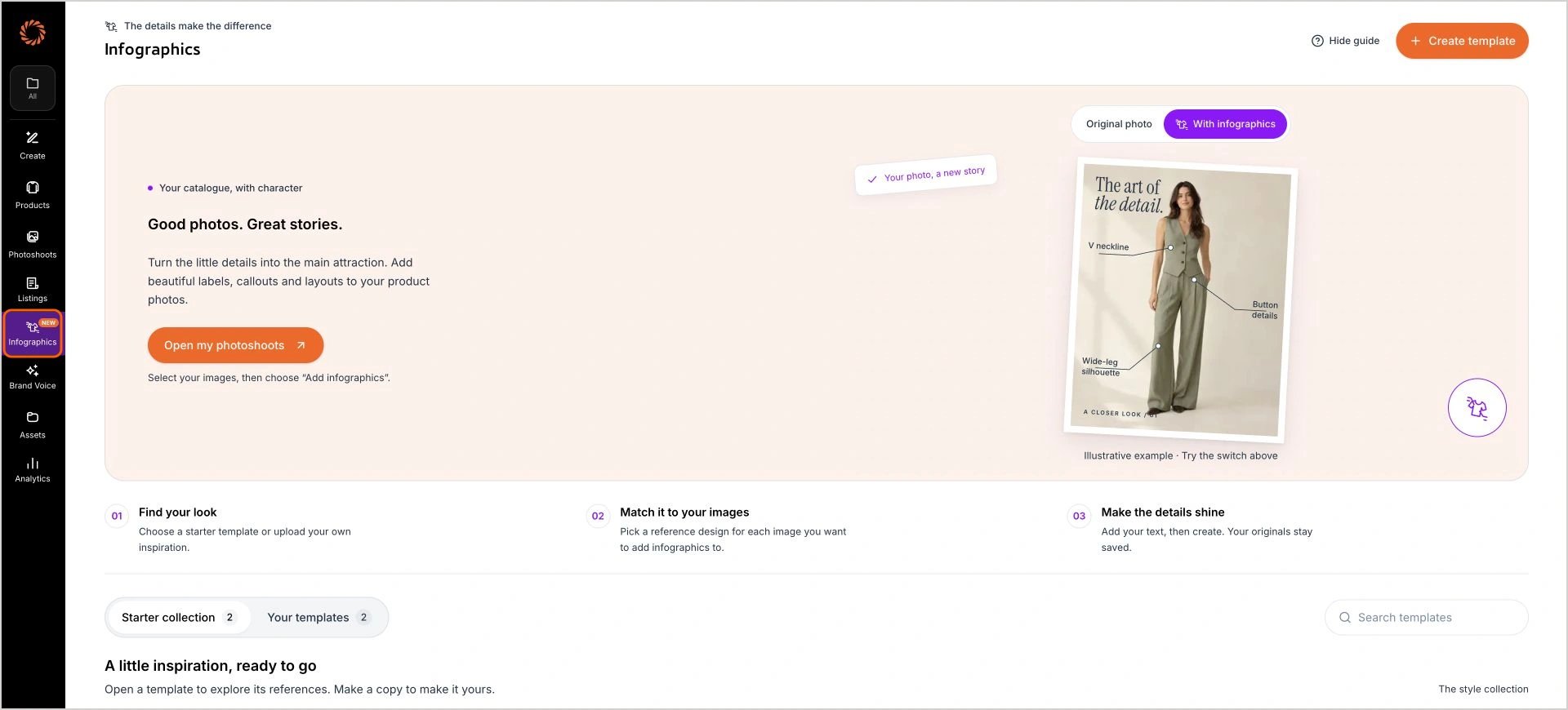
Who can use Infographics
Infographics are available on the Silver, Gold, Platinum and Enterprise plans. Adding infographics to many products at once (bulk) is available on Platinum and on Enterprise plans that include bulk generation. See Infographics Plans & Credits for what each plan costs. Team members with the Admin, Member or QC Reviewer role can create templates and infographics. The Editor role can’t.Explore the guides
Create Infographic Templates
Build a set of reference designs your team can use again and again.
Add Infographics to Your Images
Pick a template, match designs to your images, add text and create.
Add Infographics in Bulk
Add infographics to many products in one go.
Track and Use Your Infographics
Follow progress, retry, download and edit your infographics.
Tips for Great Infographics
Choose the right references and write text that works.
Infographics Plans & Credits
What infographics cost on each plan, and when you’re charged.
Infographics FAQs
Answers to common questions and fixes for common problems.