How to Bulk Upload your Images
This feature allows you to upload products in bulk. Instead of uploading each product one by one, you can prepare your entire product catalog in a single flow, saving time and speeding up large-scale content creation.Step 1: Upload products
Go to the Products section and upload product images from your computer.- Choose Single Product Upload to upload multiple images for one product
- Choose Multiple Product Upload to upload folders, where each folder represents a different product
Step 2: Review uploaded products
Once uploaded, all products will appear in your Products library. Each product is now ready to be selected for photoshoot creation.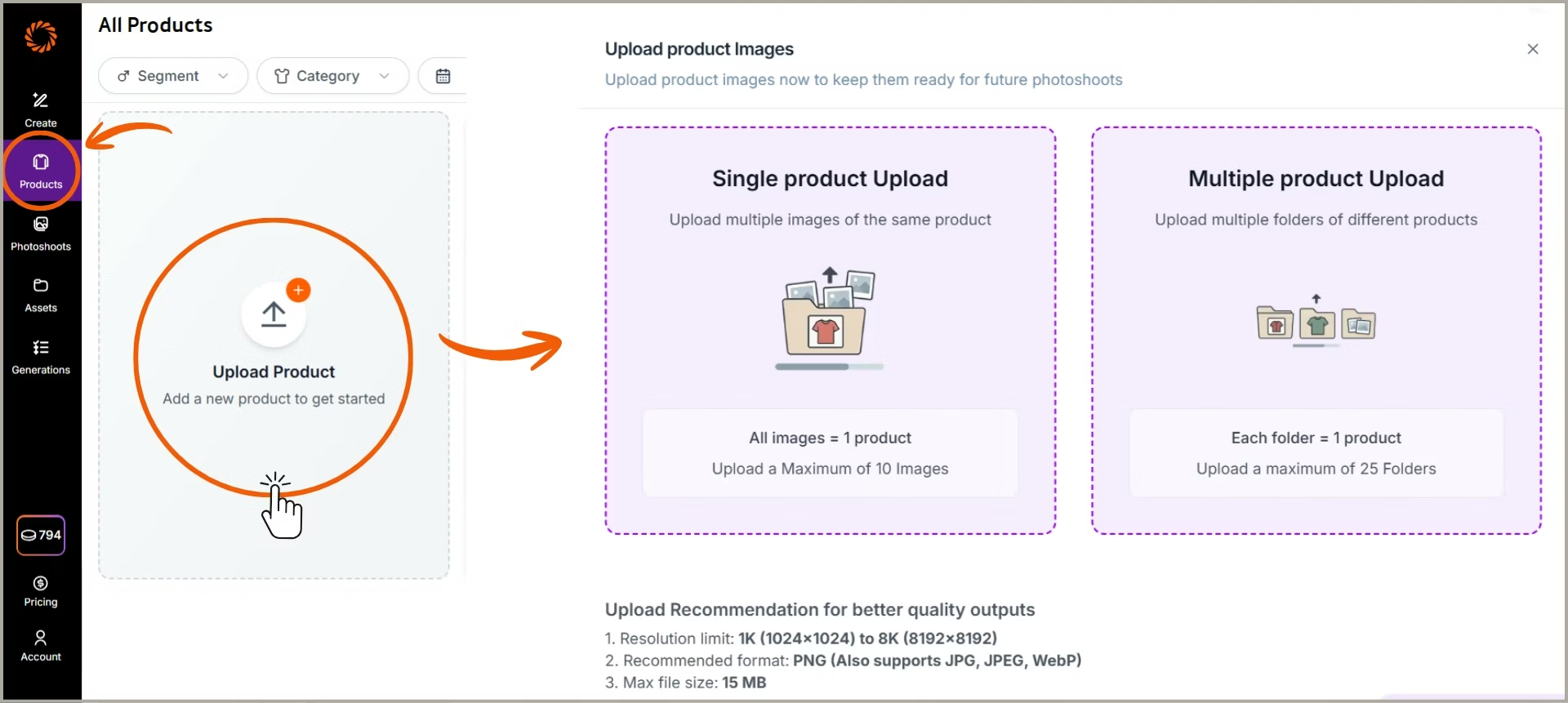
How to Bulk Generate Photoshoots
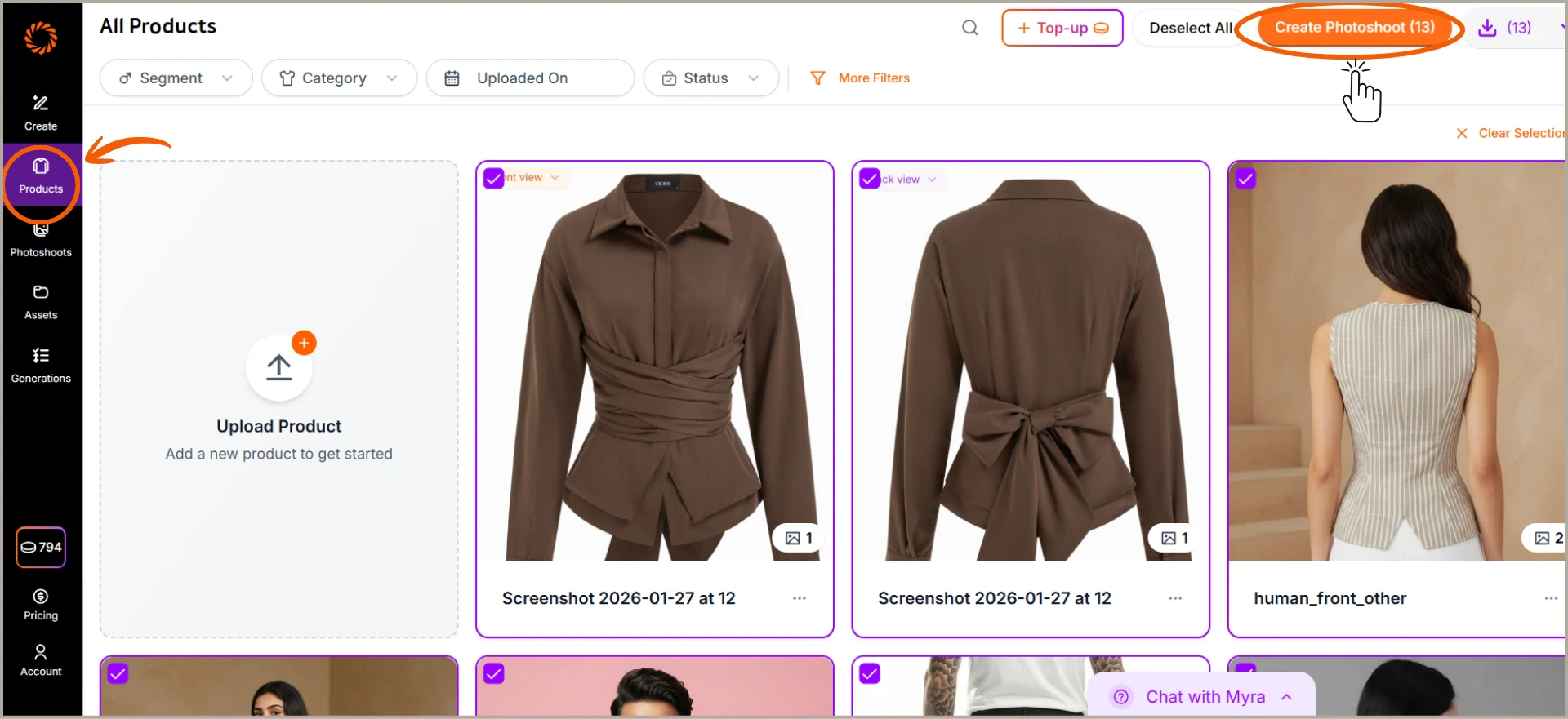
Bulk Generation allows you to create photoshoots for multiple products at the same time. Once your product images are uploaded and ready, you can select several products and generate photoshoots in one action—eliminating the need to process each product individually. This feature is designed for high-volume workflows, helping teams generate consistent, high-quality visuals across large catalogs while saving significant time and effort.Step 1: Select products for bulk generation
Select one or more products from the list that you want to generate photoshoots for. You can select multiple products at once to process them together.Step 2: Create photoshoots in bulk
Click Create Photoshoot to start generating photoshoots for all selected products simultaneously. Each selected product will be processed as an individual photoshoot, allowing you to generate visuals at scale in a single action.